Chromebook vs Laptop: The Ultimate Guide to Choosing Your Perfect Device
💻 Chromebook vs Laptop: The Ultimate Guide to Choosing Your Perfect Device
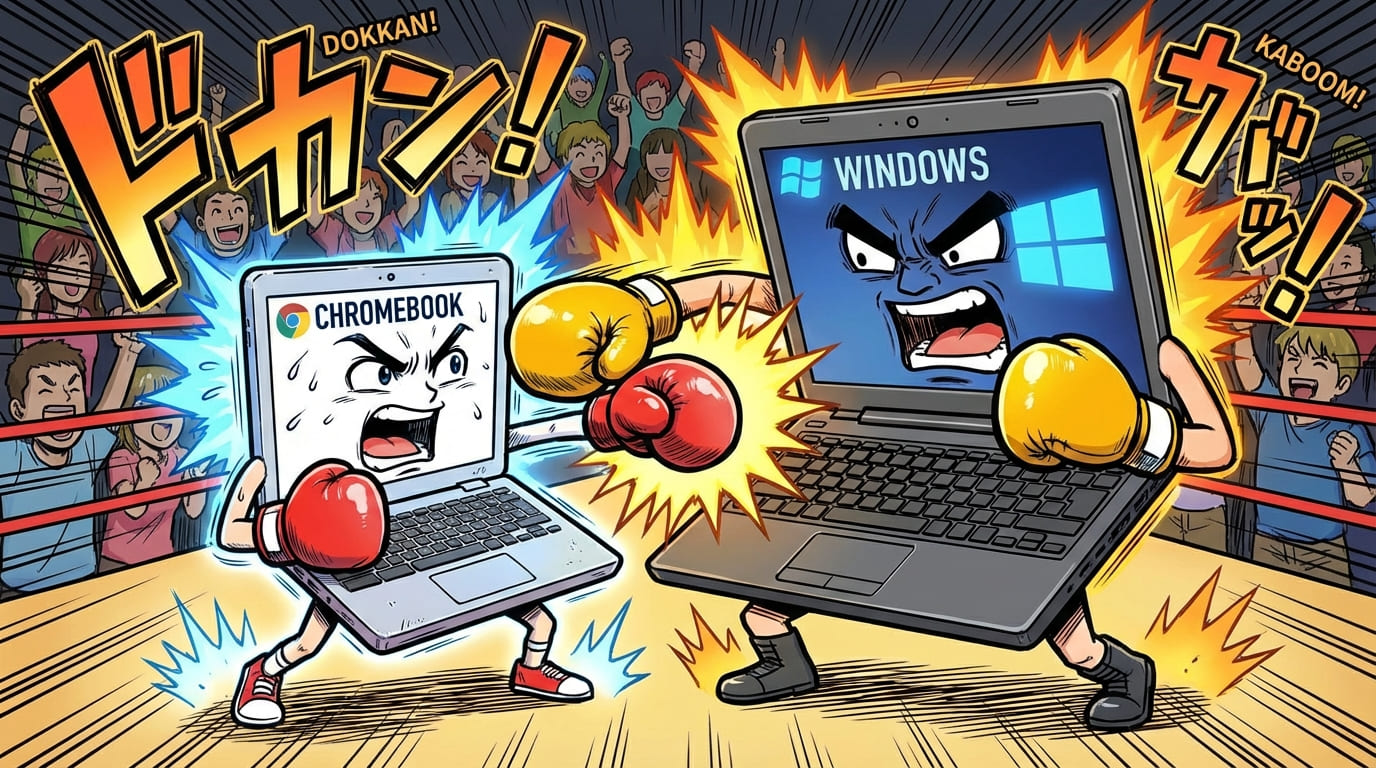
So you're standing in the computer aisle (or more likely, scrolling through endless Amazon pages at 2 AM in your pajamas), and you've hit the eternal question: Should I buy a Chromebook or a traditional laptop? Don't worry, friend—you're not alone in this existential tech crisis. It's the modern equivalent of "paper or plastic," except the stakes are higher and the confusion is real.
Here's the thing: both Chromebooks and traditional laptops can browse the web, play videos of cats doing ridiculous things, and help you pretend to work while actually online shopping. But beneath their similar-looking exteriors, these devices are fundamentally different beasts. Choosing the wrong one is like bringing a spork to a steak dinner—technically functional, but you're going to have a bad time.
In this comprehensive guide, we're going to break down everything you need to know about Chromebooks versus laptops. We'll cover operating systems, performance, pricing, use cases, and answer every burning question you might have. By the end, you'll know exactly which device deserves a spot on your desk (or lap, or wherever you do your computing). Let's dive in! 🚀
📑 Table of Contents
- 1. What Exactly Is a Chromebook? (And What Makes It Different?)
- 2. Operating System Showdown: ChromeOS vs Windows vs macOS
- 3. Price Ranges and Value: Getting the Most Bang for Your Buck
- 4. Performance for Everyday Tasks
- 5. Offline Capabilities and Internet Dependency
- 6. Storage Options: Cloud vs Local
- 7. Software and App Availability
- 8. Best Choice for Students and Education
- 9. Best for Business and Productivity
- 10. Best for Creative Work
- 11. Best for Gaming
- 12. Best for Casual Home Use
- 13. Best for Travel and Portability
- 14. Battery Life Comparison
- 15. Build Quality and Durability
- 16. Security and Virus Protection
- 17. Updates and Long-Term Support
- 18. Learning Curve for Switchers
- 19. When to Choose a Chromebook
- 20. When to Choose a Traditional Laptop
- 21. Popular Models at Different Price Points
- 22. Frequently Asked Questions
- 23. Tips and Troubleshooting
- 24. Conclusion and Key Takeaways
1. 🤔 What Exactly Is a Chromebook? (And What Makes It Different?)
Let's start with the basics, because surprisingly, a lot of people think a Chromebook is just a cheap laptop with a fancy name. Spoiler alert: it's not. A Chromebook is a specific type of laptop that runs on Google's ChromeOS operating system instead of Windows or macOS. Think of it as a laptop that grew up in the cloud and never really left.
The core philosophy behind Chromebooks is beautifully simple: most of what we do on computers nowadays happens in a web browser anyway. Email? Browser. Social media? Browser. Watching Netflix while pretending to work? Definitely browser. So Google thought, "Why not build an entire operating system around that idea?" And thus, the Chromebook was born.
Traditional laptops, on the other hand, run full desktop operating systems like Windows or macOS. These operating systems have been around for decades and are designed to handle everything from simple web browsing to complex video editing, 3D modeling, and running thousands of specialized software programs. They're the Swiss Army knives of the computing world—capable of doing almost anything, but sometimes more complicated than necessary for simple tasks.
2. ⚙️ Operating System Showdown: ChromeOS vs Windows vs macOS
The operating system is the soul of your computer. It determines what you can do, how you do it, and how often you'll want to throw your device out the window in frustration. Let's break down the key players:
ChromeOS: The Minimalist Champion
ChromeOS is like that friend who only owns 15 items of clothing but always looks put together. It's streamlined, fast, and focused on doing a few things exceptionally well. The interface is clean—you've got a taskbar (called the "shelf"), a launcher for your apps, and the Chrome browser as your primary workspace.
Everything in ChromeOS is designed around web apps and cloud storage. Your files live in Google Drive, your documents are in Google Docs, and your entire digital life syncs seamlessly across devices. Log into any Chromebook with your Google account, and within minutes, it feels exactly like your own machine.
Windows: The Versatile Veteran
Windows is the old reliable of operating systems. It's been around since the dinosaurs roamed the earth (okay, since 1985, but close enough in tech years). Windows can run virtually any software ever made, from ancient programs your company refuses to update to the latest AAA games. It's powerful, flexible, and familiar to most people.
The downside? With great power comes great responsibility—and occasionally, great frustration. Windows requires more maintenance, is more susceptible to viruses, and those update notifications have been known to appear at the worst possible moments. "Restarting for updates" during an important presentation is basically a rite of passage.
macOS: The Premium Experience
macOS is Apple's operating system, exclusive to Mac computers. It's known for its polished interface, excellent integration with other Apple devices, and strong performance in creative applications. If you're already in the Apple ecosystem with an iPhone and iPad, macOS feels like coming home.
However, macOS comes with Apple's premium pricing, and you're limited to Apple hardware. You can't buy a cheap macOS laptop—the entry point is significantly higher than both Chromebooks and Windows laptops.
| Feature | ChromeOS | Windows | macOS |
|---|---|---|---|
| Primary Focus | Web-based computing | General-purpose computing | Creative & productivity |
| Software Availability | Web apps + Android apps | Widest selection | Strong creative suite |
| Learning Curve | Very easy | Moderate | Easy to moderate |
| Maintenance Required | Minimal | Regular | Low to moderate |
| Virus Susceptibility | Very low | Higher | Low |
| Price Range | $150-$1,000 | $200-$3,000+ | $999-$6,000+ |
3. 💰 Price Ranges and Value: Getting the Most Bang for Your Buck
Let's talk money, because your wallet definitely has opinions about this decision. One of the biggest advantages of Chromebooks is their affordability, but the picture is more nuanced than "Chromebooks cheap, laptops expensive."
Budget Tier ($150-$400)
In this range, Chromebooks absolutely dominate. A $300 Chromebook will give you a smooth, responsive experience for web browsing, document editing, and streaming. A $300 Windows laptop? Let's just say you'll become intimately familiar with the loading spinner and learn the true meaning of patience.
Budget Windows laptops often cut corners on processors, RAM, and storage in ways that make everyday tasks frustrating. Meanwhile, ChromeOS is lightweight enough to run beautifully on modest hardware. It's like the difference between a sports car and a cargo truck—the truck can technically drive on a highway, but the experience is very different.
Mid-Range Tier ($400-$800)
This is where things get interesting. At around $500-$600, you can get a very nice Chromebook with premium features like a high-resolution display, aluminum construction, and excellent keyboards. Models like the Acer Chromebook Spin series or Lenovo Chromebook Duet offer fantastic value.
In this same range, Windows laptops become much more capable. You'll find machines with decent processors, 8GB of RAM, and SSD storage that can handle multitasking and light content creation without breaking a sweat. This is the sweet spot for Windows laptops if you need more than basic functionality.
Premium Tier ($800+)
Premium Chromebooks like the Google Pixelbook series or HP Dragonfly Chromebook exist, and they're genuinely excellent machines. However, at $800+, you need to carefully consider whether you're getting proportional value. A premium Chromebook still runs ChromeOS—it can't suddenly run Photoshop or play PC games.
At this price point, Windows and Mac laptops offer significantly more capability. You're getting machines that can handle video editing, software development, gaming, and professional applications. The question becomes: do you need that capability, or are you paying for features you'll never use?
💡 Pro Tip: The True Cost Calculation
When comparing prices, factor in the software you'll need. Windows laptops often require additional purchases for antivirus software and productivity suites (Microsoft 365 costs $70-$100/year). Chromebooks include Google Workspace for free, and the built-in security means no antivirus purchases. Over 3-4 years, this can add up to $300-$500 in savings!
4. ⚡ Performance for Everyday Tasks
Here's where we need to have an honest conversation about what "performance" actually means for most people. If you're like 90% of computer users, your daily tasks include:
- Web browsing (lots of tabs, let's be honest)
- Email and communication
- Document editing (Word, Google Docs, spreadsheets)
- Video streaming (Netflix, YouTube, Disney+)
- Video calls (Zoom, Google Meet, Teams)
- Light photo management
- Social media scrolling
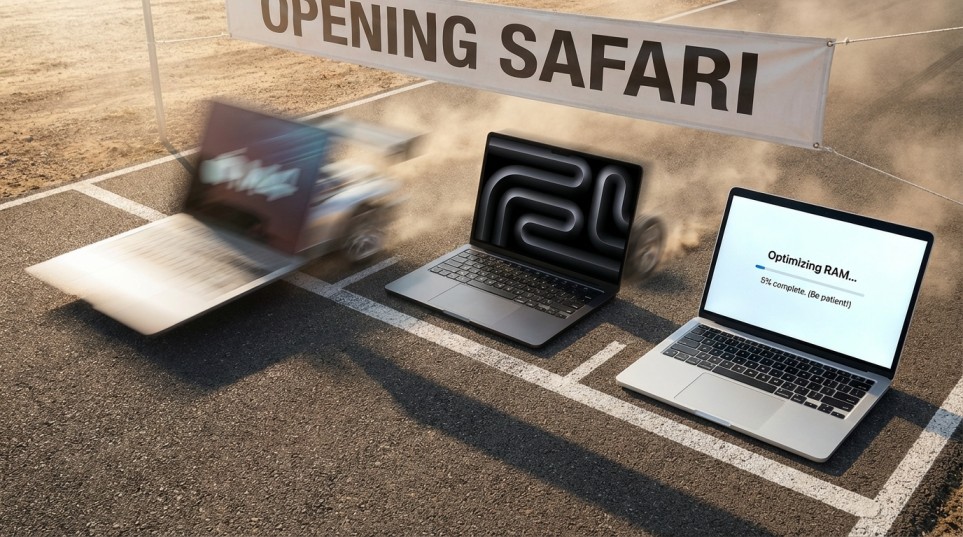
For these tasks, a modern Chromebook performs just as well—and often better—than a similarly priced Windows laptop. ChromeOS is incredibly efficient, so a Chromebook with a modest processor and 4GB of RAM can feel snappier than a Windows laptop with "better" specs on paper.
The key difference comes when you start demanding more from your machine. Running multiple applications simultaneously, working with large files, or performing any kind of intensive processing is where traditional laptops pull ahead. More RAM, faster processors, and dedicated graphics cards in Windows and Mac laptops provide headroom that Chromebooks simply can't match.
The Tab Test
Here's a real-world scenario: You've got 20 Chrome tabs open (don't pretend you don't), Spotify playing in the background, and a Google Doc you're supposedly working on. On a mid-range Chromebook, this scenario runs smoothly because ChromeOS is optimized for exactly this use case. On a budget Windows laptop, you might start seeing slowdowns and that dreaded spinning wheel.
However, add Photoshop, a video editing timeline, and a local development server to that mix, and even the best Chromebook will tap out while a capable Windows laptop keeps chugging along.
5. 📡 Offline Capabilities and Internet Dependency
This is probably the most misunderstood aspect of Chromebooks. The common belief is that Chromebooks are completely useless without an internet connection—basically expensive paperweights once you leave your WiFi's loving embrace. This was somewhat true in the early days, but it's largely a myth now.
What Chromebooks Can Do Offline
Modern Chromebooks have significantly improved their offline capabilities:
- Google Docs, Sheets, and Slides work offline (changes sync when you reconnect)
- Gmail can be accessed offline (you can read and compose emails)
- Many Android apps work without internet
- Downloaded movies and music from Netflix, Spotify, etc.
- Photo editing with offline-capable apps
- Games that don't require online connectivity
- PDF reading and annotation
Where Chromebooks Still Struggle Offline
That said, Chromebooks are still more internet-dependent than traditional laptops. Web apps that require a server connection won't work, and the overall experience is definitely optimized for connectivity. If you regularly find yourself in situations without reliable internet—airplane travel without WiFi, remote cabins, areas with poor connectivity—a traditional laptop offers more flexibility.
Windows and Mac laptops can run fully-featured applications that work entirely offline. Whether it's Microsoft Office, Adobe Creative Suite, or specialized industry software, these programs store everything locally and don't care whether you're connected or not.
⚠️ Important Consideration
Before buying a Chromebook, honestly assess your connectivity situation. If your home internet is unreliable, you travel frequently to areas without WiFi, or your work involves locations without connectivity, a traditional laptop might serve you better despite its other tradeoffs.
6. 💾 Storage Options: Cloud vs Local
Storage philosophy is one of the fundamental differences between Chromebooks and traditional laptops. Chromebooks embrace the cloud like a long-lost friend, while traditional laptops still believe in keeping everything close to home.
Chromebook Storage: Living in the Cloud
Most Chromebooks come with relatively small internal storage—typically 32GB to 128GB. This sounds absurdly small in an age where phones come with 256GB, but there's a method to this apparent madness. Chromebooks are designed around the assumption that your files live in Google Drive, your photos are in Google Photos, and your music streams from Spotify or YouTube Music.
Google sweetens the deal by often including free Google One storage (100GB or more) with Chromebook purchases. Plus, Google Drive integration is seamless—files you save locally are automatically backed up to the cloud, and you can access your entire Drive as if it were local storage.
The advantages of this approach are significant: your data is automatically backed up, accessible from any device, and your Chromebook stays fast because it's not bogged down managing massive local file libraries. If your Chromebook gets damaged or stolen, you log into a new one and everything is there waiting for you.
Traditional Laptop Storage: The Local Approach
Windows and Mac laptops typically come with much larger storage—256GB to 2TB is common, with options for more. This local storage is essential if you work with large files like videos, high-resolution images, games, or extensive software installations.
Local storage also means your files are always accessible regardless of internet connectivity, and there are no ongoing subscription fees for cloud storage beyond what the hardware cost. However, local storage requires you to manage your own backups, and if your laptop dies without a backup, your files might be gone forever.
| Storage Aspect | Chromebook (Cloud-Centric) | Traditional Laptop (Local-Centric) |
|---|---|---|
| Typical Capacity | 32GB - 128GB local + cloud | 256GB - 2TB local |
| File Accessibility | Any device with internet | Only on the device |
| Backup | Automatic to cloud | Manual (user responsibility) |
| Large File Handling | Can be slow/limited | No limitations |
| Ongoing Costs | Possible cloud storage fees | None (hardware only) |
7. 📱 Software and App Availability
This is where the rubber meets the road for many buyers. What software can you actually run on each platform?
Chromebook Software Ecosystem
Chromebooks have access to three categories of applications:
Web Apps: Any website or web application works on a Chromebook. This includes Google Workspace, Microsoft 365 Online, Canva, Figma, various online video editors, and thousands of other tools. Progressive Web Apps (PWAs) can be installed for offline use and feel almost like native applications.
Android Apps: Modern Chromebooks can run Android apps from the Google Play Store. This dramatically expands the software library to include apps like Netflix, Kindle, Instagram, and many productivity tools. However, some Android apps work better than others on a larger screen, and not all apps are optimized for Chromebook hardware.
Linux Apps: For more advanced users, many Chromebooks support Linux applications through a feature called Crostini. This opens up access to professional tools like GIMP, LibreOffice, VS Code, and various development environments.
What Chromebooks Cannot Run
Despite these options, there are significant gaps in Chromebook software capabilities:
- Adobe Creative Cloud (Photoshop, Premiere Pro, Illustrator, etc.)
- Microsoft Office desktop applications (though online versions work)
- Most Windows games and Steam library
- Professional software like AutoCAD, SolidWorks, MATLAB
- Many industry-specific applications (legal, medical, accounting software)
- Virtual machines and certain development tools
Traditional Laptop Software
Windows laptops have access to the largest software library in existence. If a program exists, there's probably a Windows version. This includes every major creative application, all games, business software, development tools, and niche industry applications.
Mac laptops have a smaller but highly curated library, with exceptional strength in creative applications. Many professional creatives prefer macOS for video editing, music production, and design work.
8. 🎓 Best Choice for Students and Education
Education is where Chromebooks have found their strongest foothold, and for good reason. If you're a student (or a parent buying for one), here's the breakdown:
Why Chromebooks Excel in Education
Affordability: School budgets are tight, and students are... let's say "enthusiastic" with their devices. A $250-$350 Chromebook provides everything needed for schoolwork without the financial heartbreak when it inevitably takes a tumble.
Google Workspace Integration: Most schools use Google Classroom, Google Docs, and Google Drive. Chromebooks integrate with these tools seamlessly—it's like they were made for each other. Because they were.
Management and Security: For school IT administrators, Chromebooks are a dream. They're easy to manage remotely, have excellent built-in security, and can be configured to restrict access to inappropriate content or distracting websites.
Simplicity: Students can focus on learning instead of troubleshooting computer problems. ChromeOS rarely crashes, doesn't need antivirus software, and updates automatically in the background.
Battery Life: Most Chromebooks last a full school day on a single charge, so forgetting the charger isn't catastrophic.
When Students Might Need a Traditional Laptop
Not all students are created equal (academically speaking, of course). Certain majors and programs require software that simply won't run on a Chromebook:
- Engineering students needing CAD software, MATLAB, or simulation tools
- Computer science students requiring specific development environments
- Film and media students using Adobe Premiere or Final Cut Pro
- Architecture students running AutoCAD or Revit
- Music production students using Logic Pro or Ableton
- Graphic design students needing Adobe Creative Suite
If you're in one of these fields, a traditional laptop isn't just recommended—it's required. Check your program's requirements before making a purchase.
🎯 The Student Verdict
For K-12 students and college students in humanities, business, or general studies: Chromebook wins. For STEM majors, creative programs, or anyone with specific software requirements: get a traditional laptop that meets your program's specifications.
9. 💼 Best for Business and Productivity
The business world has traditionally been Windows territory, but Chromebooks are making surprising inroads. Here's how they stack up for professional use:
Chromebooks in Business
Many businesses are discovering that their employees spend 90% of their time in a web browser anyway. Email, spreadsheets, documents, video conferencing, CRM systems, project management tools—almost everything runs in the cloud now. For these workers, a Chromebook offers:
- Lower hardware costs and easier fleet management
- Reduced IT support burden (fewer malware issues, simpler troubleshooting)
- Enhanced security for sensitive business data
- Fast deployment (new employees are productive in minutes)
- Automatic updates that don't disrupt work
Companies like Google (obviously), but also organizations like Netflix, Walmart, and various government agencies have deployed Chromebooks for appropriate roles.
Where Traditional Laptops Remain Essential
However, many business functions still require traditional laptops:
- Financial services: Specialized trading platforms, Bloomberg terminals
- Legal: Document management systems, e-discovery tools
- Healthcare: Electronic health record systems, medical imaging
- Manufacturing: CAD/CAM software, equipment interfaces
- Any role requiring Microsoft Office desktop features not available online
The Microsoft 365 Question
A common concern: "Can I use Microsoft Office on a Chromebook?" The answer is yes, but with caveats. Microsoft 365 web apps (Word, Excel, PowerPoint online) work great on Chromebooks. For most document editing, spreadsheet work, and presentations, the online versions are perfectly capable.
However, power users who rely on advanced Excel features (complex macros, certain add-ins, massive datasets) or need specific Word formatting capabilities might find the web versions limiting. If you're doing serious financial modeling or complex document layouts, you probably need the desktop applications.
10. 🎨 Best for Creative Work
Creative professionals, we need to have a real talk. This is probably the clearest category in the Chromebook vs laptop debate.
Photo Editing
Chromebooks: Can handle basic photo editing through web apps like Canva, Pixlr, or Photopea (a surprisingly capable Photoshop clone that runs in your browser). For social media content, basic corrections, and casual photography, these tools are adequate. Some Android photo apps also work well.
Traditional Laptops: Essential for serious photography work. Adobe Lightroom and Photoshop offer features, performance, and integration that web apps simply can't match. Processing RAW files from high-resolution cameras requires local computing power.
Video Editing
Chromebooks: Limited to basic video editing through apps like WeVideo, Kapwing, or Android apps like KineMaster. Fine for simple YouTube videos, social media clips, or home movies. Not suitable for professional work.
Traditional Laptops: Non-negotiable for video editing. Adobe Premiere Pro, Final Cut Pro, DaVinci Resolve—these programs need powerful processors, dedicated graphics cards, and plenty of RAM. Video files are huge, editing is processor-intensive, and rendering requires serious hardware.
Graphic Design and Illustration
Chromebooks: Figma and Canva work excellently on Chromebooks for UI/UX design and basic graphic design. For vector illustration, web-based options exist but are limited compared to desktop software.
Traditional Laptops: Adobe Illustrator, CorelDRAW, Affinity Designer—the professional standards all require traditional operating systems. Print design with specific color management requirements also needs desktop applications.
Music Production
Chromebooks: Very limited. Some web-based DAWs exist (Soundtrap, BandLab), and you can run some Android music apps, but nothing approaches professional capability.
Traditional Laptops: Logic Pro, Ableton Live, Pro Tools, FL Studio—all require Mac or Windows. Music production also benefits from specific audio interfaces, plugins, and processing power that Chromebooks can't provide.
🎯 The Creative Verdict
If creative work is your profession or serious hobby, get a traditional laptop. Period. Chromebooks can supplement your workflow for certain tasks, but they cannot replace a capable Windows or Mac machine for creative production.
11. 🎮 Best for Gaming
Ah, gaming. Where dreams of playing the latest titles clash with the reality of hardware requirements. Let's break down your options:
Gaming on Chromebooks
Chromebooks aren't designed for gaming, but that doesn't mean you can't have fun:
Android Games: The Google Play Store offers thousands of mobile games that work on Chromebooks. Casual games, puzzle games, and even some more substantial titles like Stardew Valley play great.
Cloud Gaming: This is the big one. Services like NVIDIA GeForce NOW, Xbox Cloud Gaming, and Amazon Luna let you stream AAA games to your Chromebook. As long as you have a solid internet connection (15+ Mbps minimum, 35+ Mbps recommended), you can play demanding games without demanding hardware.
Web Games: Browser-based games have come a long way. Some impressive titles run entirely in Chrome.
Gaming on Traditional Laptops
For serious gaming, a Windows laptop with a dedicated graphics card is the way to go. You can install Steam, Epic Games Store, and other platforms to access the full library of PC games. Performance depends on your hardware—a budget Windows laptop won't game any better than a Chromebook, but a proper gaming laptop with an NVIDIA or AMD graphics card opens up an entire world of possibilities.
Mac laptops fall somewhere in between. They can run games, and Apple Silicon has improved gaming performance significantly, but the Mac gaming library is smaller than Windows, and high-end gaming isn't macOS's strength.
The Cloud Gaming Caveat
Cloud gaming is genuinely impressive and makes Chromebooks viable gaming machines for many people. However, it requires consistent, fast internet—something not everyone has. There's also inherent input lag compared to local gaming, which matters for competitive play. And you don't own the games in the same way; you're dependent on the service continuing to exist.
💡 Gaming Recommendation
If gaming is a priority, get a Windows laptop with at least an NVIDIA RTX 3050 or equivalent graphics card. If gaming is occasional and casual, a Chromebook with cloud gaming services can work surprisingly well. Check your internet speed first!
12. 🏠 Best for Casual Home Use
For the person who just wants a computer that works without fuss—for browsing, email, streaming, video calls with family, and maybe some light document editing—this might be the most important section.
Chromebooks Shine for Casual Users
If your computer needs are straightforward, a Chromebook is often the perfect choice:
- Turn on and it works: Boot times are measured in seconds, not minutes. No waiting for Windows to sort itself out.
- Zero maintenance: No antivirus to run, no disk cleanup utilities, no defragmentation. It just works.
- Automatic updates: Updates happen silently in the background and take seconds to apply. No "Please don't turn off your computer" anxiety.
- Difficult to mess up: The sandboxed architecture means it's hard to accidentally break things. Great for less tech-savvy users.
- Perfect for seniors: The simplicity is a genuine feature, not a limitation, for users who find traditional computers overwhelming.
When Casual Users Might Want a Traditional Laptop
Even casual users might prefer a traditional laptop if they:
- Have existing Windows software they need to keep using
- Want to manage large local libraries of photos, music, or videos
- Need to use peripherals that require specific Windows/Mac drivers
- Have unreliable internet access
- Play games beyond casual mobile titles
13. ✈️ Best for Travel and Portability
Frequent travelers have specific needs: light weight, long battery life, easy security compliance, and the ability to work in various connectivity situations.
Chromebooks for Travel
Pros:
- Generally lighter and thinner than equivalent Windows laptops
- Excellent battery life (often 10+ hours)
- Fast boot times for quick use between flights
- Enhanced security reduces risk if stolen
- Easy to wipe and restore from cloud if needed
Cons:
- More dependent on WiFi, which can be spotty in transit
- Airplane WiFi might not be sufficient for cloud-dependent tasks
- Hotel/conference WiFi security concerns (though this affects all laptops)
Traditional Laptops for Travel
Premium Windows ultrabooks and MacBooks offer excellent portability with more capability. The MacBook Air and high-end Windows ultrabooks match or beat Chromebooks on weight and battery life while offering full functionality. However, they also cost significantly more.
For travelers who need to work offline—editing documents on flights, working in remote areas, or dealing with unpredictable connectivity—traditional laptops offer more peace of mind.
14. 🔋 Battery Life Comparison
Battery life matters, especially if you're not always near an outlet. Here's how the options compare:
Chromebooks: Efficiency Champions
ChromeOS's lightweight nature translates to excellent battery life. Most mid-range Chromebooks deliver 8-12 hours of real-world use. The efficiency comes from the operating system itself requiring fewer resources, allowing the hardware to sip power instead of gulp it.
Windows Laptops: Variable Results
Windows laptop battery life varies wildly depending on the hardware and how you use it. Budget Windows laptops might only manage 4-6 hours. Premium ultrabooks like the Dell XPS or Lenovo ThinkPad X1 Carbon can hit 10-12 hours. Gaming laptops? You'll be lucky to get 3-4 hours while gaming.
MacBooks: Strong Performers
Apple Silicon MacBooks have exceptional battery life—the MacBook Air routinely delivers 15-18 hours of use. This is one area where Macs genuinely excel.
| Device Type | Typical Battery Life |
|---|---|
| Budget Chromebook | 8-10 hours |
| Premium Chromebook | 10-12 hours |
| Budget Windows Laptop | 4-6 hours |
| Premium Windows Ultrabook | 8-12 hours |
| Gaming Laptop (while gaming) | 2-4 hours |
| MacBook Air (Apple Silicon) | 15-18 hours |
15. 🛠️ Build Quality and Durability
Build quality varies more by price point than by platform, but there are some general patterns:
Chromebooks
Budget Chromebooks ($150-$300) typically feature plastic construction—functional but not luxurious. They're designed to be affordable and replaceable.
Mid-range Chromebooks ($400-$600) often feature aluminum lids or full metal construction, improved keyboards, and better displays. Models designed for education frequently include reinforced hinges and spill-resistant keyboards to survive student abuse.
Premium Chromebooks rival the best Windows ultrabooks in build quality, with premium materials, excellent keyboards, and refined designs.
Windows Laptops
The range is enormous. Budget Windows laptops can feel cheap and plasticky, while premium models like the Dell XPS or Lenovo ThinkPad X1 Carbon are beautifully constructed with premium materials.
MacBooks
Apple maintains consistent build quality across the line—aluminum unibody construction with excellent keyboards and trackpads. You're paying for it, but the quality is undeniable.
16. 🔒 Security and Virus Protection
Security is one area where Chromebooks have a clear, objective advantage.
Chromebook Security: Defense in Depth
ChromeOS was designed from the ground up with security as a priority:
- Verified Boot: Every time a Chromebook starts, it checks itself for tampering. If anything's wrong, it automatically repairs itself.
- Sandboxing: Every tab and app runs in its own isolated container. Malware in one tab can't affect others or the system.
- Automatic Updates: Security patches are applied automatically without user intervention.
- No Traditional Viruses: ChromeOS can't run Windows executables, which eliminates the vast majority of malware.
- Data Encryption: User data is encrypted by default.
In practice, Chromebooks are nearly immune to the viruses, malware, and ransomware that plague Windows computers. You don't need antivirus software—the protection is built in.
Windows Security: Improving but Vigilance Required
Windows has improved significantly in recent versions, with Windows Defender providing decent built-in protection. However, the open nature of the platform means users still need to be careful about what they download and install. Many people still choose to run third-party antivirus software for additional protection.
macOS Security: Strong but Not Invincible
Macs have historically had fewer malware threats, partly due to smaller market share and partly due to good security architecture. However, as Mac market share has grown, so have threats targeting the platform. macOS includes good security features, but it's not immune to all attacks.
💡 Security Recommendation
If you're buying a computer for someone who might click on suspicious links or download questionable files (no judgment—it happens to everyone), a Chromebook's security architecture provides genuine peace of mind that Windows simply can't match without additional software and vigilance.
17. 📅 Updates and Long-Term Support
How long will your device receive updates, and what's the update experience like?
Chromebook Updates
Chromebooks receive automatic updates every few weeks, and these updates typically take less than a minute to apply. You'll barely notice them. Google guarantees updates for a specific period—currently, new Chromebooks receive 10 years of automatic updates from their release date.
The caveat: once a Chromebook reaches its end-of-life date, it stops receiving security updates. It will still work, but it's not recommended for continued use due to security concerns. Always check the Auto Update Expiration date before buying, especially for older or discounted models.
Windows Updates
Windows laptops receive updates for as long as Microsoft supports the Windows version you're running. Windows 10 is supported until October 2025, and Windows 11 will be supported for years beyond that. In practice, most Windows laptops receive meaningful updates for 5-8 years.
The update experience is... less smooth. Updates can take significant time to install, occasionally happen at inconvenient moments, and have been known to cause issues. The "What's taking so long?" update experience is a Windows tradition at this point.
macOS Updates
Apple typically supports Mac hardware with macOS updates for 7-8 years. Updates are generally smooth and quick to install, though the once-yearly major updates can take some time.
18. 📚 Learning Curve for Switchers
If you're switching from one platform to another, how steep is the learning curve?
Switching to ChromeOS
If you're comfortable using a web browser, you're already 90% of the way to mastering ChromeOS. The interface is intuitive, settings are straightforward, and there's simply less to learn because there's less to the system. Most people adapt within a day or two.
The main adjustments involve:
- Learning to use web apps instead of installed software
- Understanding the file system (local files vs. Google Drive)
- Getting used to keyboard shortcuts (similar to but not identical to Windows/Mac)
- Accepting that some things work differently or aren't available
Switching Between Windows and macOS
Switching between traditional operating systems has a steeper learning curve. Different keyboard shortcuts, different file management, different application behaviors—it typically takes a few weeks to feel truly comfortable after switching between Windows and Mac.
19. ✅ When to Choose a Chromebook
A Chromebook is the right choice when:
- Your computing needs are primarily web-based (email, browsing, documents, streaming)
- You want simplicity and minimal maintenance
- Budget is a primary concern
- Security is paramount and you want peace of mind
- You're already invested in the Google ecosystem (Gmail, Drive, Photos)
- You're buying for a student (K-12 or general college studies)
- You want a secondary device for casual use
- You value fast startup and long battery life
- You have reliable internet access most of the time
- You're buying for someone less tech-savvy who needs something foolproof
20. ✅ When to Choose a Traditional Laptop
A traditional laptop (Windows or Mac) is the right choice when:
- You need specific software that only runs on Windows or macOS
- You do creative work (serious photo/video editing, design, music production)
- You're a gamer who wants local gaming capabilities
- You work with large local files (videos, databases, development projects)
- You frequently work offline or have unreliable internet
- Your job requires industry-specific software
- You need advanced features in Microsoft Office
- You want maximum flexibility and capability
- You're in a technical field (engineering, data science, development)
- You need to run virtual machines or specialized development environments
21. 🏆 Popular Models at Different Price Points
Budget Chromebooks (Under $350)
- Lenovo Chromebook Duet 3 - Excellent 2-in-1 value
- Acer Chromebook 314 - Solid all-around budget option
- HP Chromebook 14 - Reliable with good display
- ASUS Chromebook Flip CM14 - Versatile convertible
Mid-Range Chromebooks ($350-$700)
- Acer Chromebook Spin 714 - Premium features, excellent performance
- HP Chromebook x360 - Great convertible option
- Lenovo Flex 5 Chromebook - Excellent value for features
Budget Windows Laptops ($300-$500)
- Acer Aspire 3 - Best budget Windows option
- Lenovo IdeaPad 3 - Reliable everyday laptop
- HP Laptop 15 - Solid all-around choice
Mid-Range Windows Laptops ($500-$1000)
- Acer Swift 3 - Excellent ultrabook value
- Dell Inspiron 14 - Well-balanced performer
- ASUS Vivobook Pro - Great for light creative work
Premium Laptops ($1000+)
- Dell XPS 13/15 - Windows premium excellence
- MacBook Air (M3) - Incredible battery and performance
- Lenovo ThinkPad X1 Carbon - Business premium
- HP Spectre x360 - Beautiful convertible
22. ❓ Frequently Asked Questions
Can Chromebooks run Microsoft Office?
Yes! Microsoft 365 (Word, Excel, PowerPoint) works in the Chrome browser through Office.com. For most document editing needs, the web versions work great. You can also install the Android versions of Office apps from the Google Play Store. However, some advanced features (complex macros, certain add-ins, specialized formatting) are only available in the desktop applications, which don't run on ChromeOS.
Do Chromebooks get viruses?
Chromebooks are extremely resistant to traditional malware and viruses. The operating system is designed with multiple layers of security—verified boot, sandboxing, automatic updates, and data encryption. Traditional Windows viruses simply can't run on ChromeOS. While no system is 100% immune to all threats, Chromebooks are as close as you can get to worry-free security for the average user.
Can you use Chromebooks without internet?
Yes, but with limitations. Many Google apps (Docs, Sheets, Slides, Gmail) work offline, and downloaded movies, music, and Android apps function without connectivity. However, web apps requiring server connections won't work, and the overall experience is optimized for internet access. If you regularly work without reliable internet, a traditional laptop offers more flexibility.
How long do Chromebooks last?
Google now provides 10 years of automatic updates for new Chromebooks. In terms of hardware, Chromebooks often age well because ChromeOS doesn't become more demanding over time like Windows can. A Chromebook purchased today should remain functional and secure for its entire support period, assuming the hardware holds up.
Can I run Photoshop on a Chromebook?
Not the full desktop version. Adobe doesn't offer Photoshop for ChromeOS. However, alternatives exist: Photopea is a free web-based editor that's surprisingly Photoshop-like, Canva handles many design tasks, and various Android photo editing apps work on Chromebooks. For professional photography work, you'll need a Windows or Mac laptop.
Are Chromebooks good for programming?
They can be! Many Chromebooks support Linux apps through Crostini, giving you access to development tools like VS Code, Git, and various programming languages. For web development, working in cloud-based IDEs, or learning to code, Chromebooks work well. For more complex development involving resource-heavy compilers, virtual machines, or specific toolchains, a traditional laptop may be better suited.
Can I connect a printer to a Chromebook?
Yes! Chromebooks work with most modern WiFi-enabled printers directly. For older printers, you may need to connect via USB or use Google's Print services. While not every printer driver is supported (unlike Windows which supports virtually everything), most common printers work without issues.
Should I buy a Chromebook or iPad?
Different use cases favor each device. Chromebooks are better for typing-intensive work (they have real keyboards), traditional computing tasks, and budget-conscious buyers. iPads excel at media consumption, creative work with the Apple Pencil, and integration with the Apple ecosystem. If you primarily browse, write, and use productivity apps, a Chromebook offers more value. If you want a tablet experience with optional productivity, consider the iPad.
23. 🔧 Tips and Troubleshooting
Chromebook Tips
- Enable offline mode proactively: Before you lose internet, open Google Docs and turn on offline access in settings. Your documents will then be available without connectivity.
- Use keyboard shortcuts: Learn shortcuts like Ctrl+Shift+L to lock the screen, Search+L to lock the Chromebook, and Ctrl+Alt+? to see all available shortcuts.
- Pin frequently used apps: Right-click apps in the launcher and select "Pin to shelf" for quick access.
- Try Linux apps: If you need more powerful software, enable Linux (Beta) in settings to access a whole new world of applications.
- Use Guest mode: When lending your Chromebook to someone, use Guest mode to protect your data and accounts.
Common Chromebook Issues and Solutions
Chromebook running slowly?
- Close unnecessary tabs (each tab uses memory)
- Clear browsing data and cache
- Disable extensions you don't use
- Restart your Chromebook
- Check for ChromeOS updates
WiFi connection issues?
- Toggle WiFi off and on
- Restart your Chromebook
- Forget the network and reconnect
- Check if other devices can connect (to isolate the problem)
Can't access a website or app?
- Try in Incognito mode to rule out extension conflicts
- Clear site-specific cookies
- Check if the site requires software that doesn't run on ChromeOS
⚠️ Nuclear Option: Powerwash
If your Chromebook has persistent issues, you can "Powerwash" it (factory reset) from Settings > Advanced > Reset settings. This wipes the device clean but doesn't affect your Google account data in the cloud. You can be back up and running with all your data within minutes—one of the beauties of cloud-centric computing.
24. 🎯 Conclusion and Key Takeaways
After this deep dive into the Chromebook vs laptop debate, the ultimate answer is frustratingly unsatisfying but absolutely true: it depends on what you need.
Neither device is objectively "better" than the other. They're different tools designed for different purposes. A Chromebook trying to run Photoshop is like a bicycle trying to haul freight—wrong tool for the job. A $2,000 Windows laptop checking email is like hiring a brain surgeon to apply a bandaid—massive overkill.
🔑 Key Takeaways
- Choose a Chromebook if your life is web-centric, you value simplicity and security, budget matters, or you're buying for students or less tech-savvy users.
- Choose a traditional laptop if you need specific software, do creative work, game seriously, work offline frequently, or require maximum flexibility.
- Budget reality: A $350 Chromebook outperforms a $350 Windows laptop for everyday tasks. But a $800+ Windows laptop can do things no Chromebook can at any price.
- Security: Chromebooks win hands-down for worry-free security.
- Battery life: Chromebooks are excellent; Windows varies widely; MacBooks are exceptional.
- Software: Windows has the most options, followed by macOS, with Chromebooks limited to web apps, Android apps, and Linux (on supported devices).
- Longevity: Chromebooks now offer 10 years of support, matching or exceeding typical laptop lifespans.
The best advice? Be honest about what you actually do with a computer—not what you might do someday, but what you actually do today. For most people, that honest assessment reveals that a Chromebook handles 95% of their needs at a fraction of the cost. For others, that assessment reveals specific needs that only a traditional laptop can meet.
Whatever you choose, you're living in a golden age of computing. Both Chromebooks and traditional laptops are better than ever, and there's no truly wrong choice—just choices that fit your needs better or worse. Happy computing! 🎉