Best Laptops for Architecture Students | CAD & Design Performance Guide
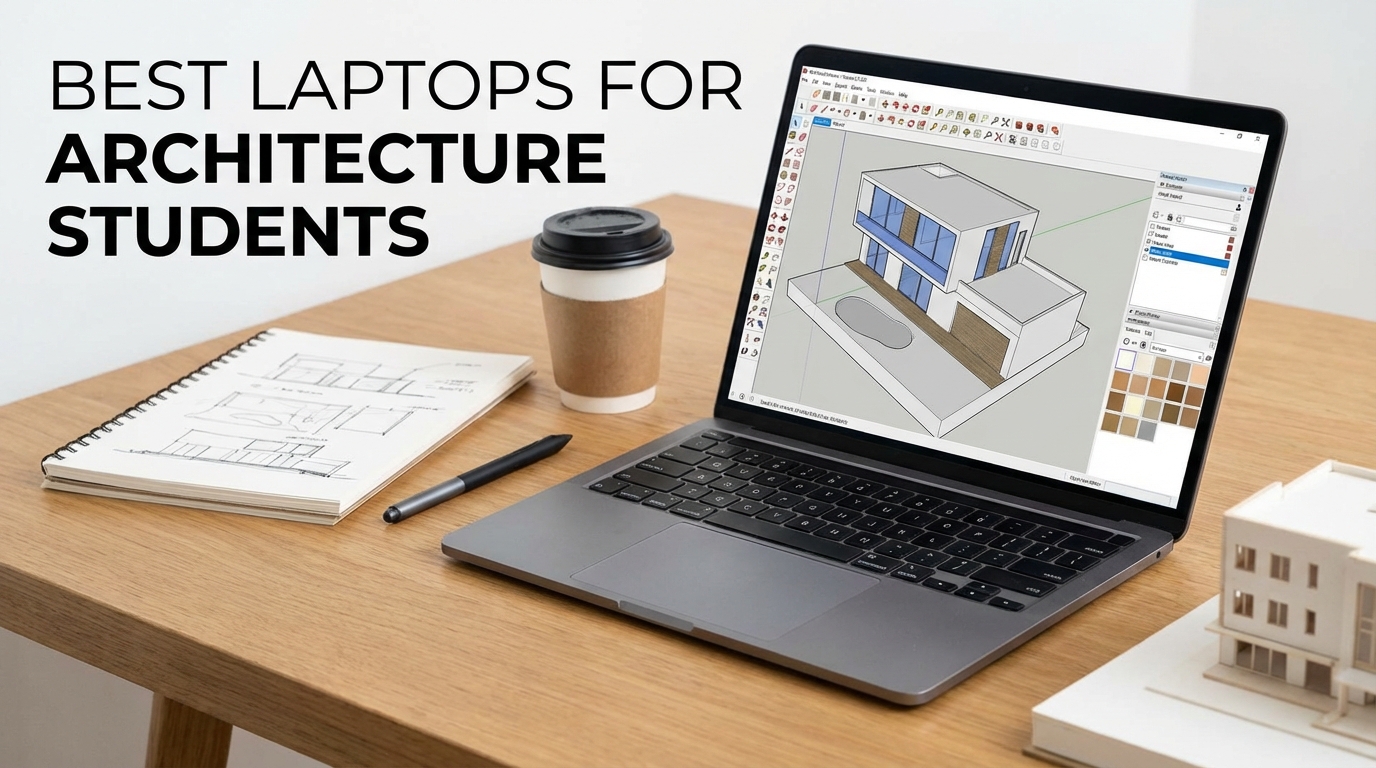
The Ultimate Guide to Finding the Perfect Laptop for Your Architecture Journey 🏗️
Choosing the right laptop as an architecture student is like selecting the foundation for a skyscraper – it needs to be rock solid and capable of supporting everything you'll build on top of it. Whether you're rendering complex 3D models in the wee hours of the morning or presenting your final project to a panel of professors, your laptop will be your most trusted companion throughout your academic journey.
Architecture students face unique challenges that most other disciplines don't encounter. You'll be running resource-intensive software like AutoCAD, Revit, SketchUp, and Rhino while juggling multiple applications simultaneously. Your laptop needs to handle everything from precise 2D drafting to photorealistic rendering, all while maintaining the portability you need for studio sessions and site visits.
| Laptop Model | Processor | RAM | Graphics | Storage | Display | Price Range | Best For |
|---|---|---|---|---|---|---|---|
| Dell XPS 15 | Intel Core i7-12700H | 16GB DDR4 | RTX 3050 Ti | 512GB SSD | 15.6" 4K OLED | $1,800-2,200 | Premium Performance |
| ASUS ROG Zephyrus G15 | AMD Ryzen 9 5900HS | 16GB DDR4 | RTX 3070 | 1TB SSD | 15.6" QHD 165Hz | $1,600-2,000 | Gaming & CAD |
| MacBook Pro 16" | Apple M1 Pro | 16GB Unified | 16-core GPU | 512GB SSD | 16.2" Liquid Retina XDR | $2,200-2,800 | Mac Ecosystem |
| Lenovo ThinkPad P1 | Intel Core i7-11800H | 32GB DDR4 | RTX A2000 | 1TB SSD | 15.6" 4K IPS | $2,000-2,500 | Workstation Power |
| HP Pavilion Plus | Intel Core i5-12500H | 16GB DDR4 | RTX 3050 | 512GB SSD | 14" 2.8K OLED | $900-1,200 | Budget Conscious |
📋 Table of Contents
- Essential Specifications for Architecture Students
- Software Requirements and Compatibility
- Top Laptop Recommendations by Category
- Budget Considerations and Value Options
- Display and Color Accuracy Requirements
- Balancing Portability vs Performance
- Troubleshooting and Optimization Tips
- Future-Proofing Your Investment
🔧 Essential Specifications for Architecture Students
Let's dive into the technical specifications that will make or break your architecture workflow. Understanding these requirements isn't just about checking boxes – it's about ensuring your laptop can handle the demanding tasks you'll face throughout your studies.
Processor Power: The Brain of Your Design Machine
Your processor is the command center that orchestrates every calculation, from simple line drawings to complex parametric modeling. For architecture students, you'll want nothing less than a modern multi-core processor that can handle parallel processing tasks efficiently.
Minimum Recommendation: Intel Core i5-11400H or AMD Ryzen 5 5600H
Optimal Choice: Intel Core i7-12700H or AMD Ryzen 7 5800H
Professional Level: Intel Core i9-12900H or AMD Ryzen 9 5900HX
The "H" designation in Intel processors indicates high-performance mobile chips designed for demanding workloads. These processors typically feature 6-8 cores with hyperthreading, allowing them to handle multiple software applications simultaneously without breaking a sweat.
Memory: Your Digital Workspace
RAM is like your physical desk space – the more you have, the more projects you can spread out and work on simultaneously. Architecture software is notoriously memory-hungry, especially when working with large 3D models or rendering scenes.
- 16GB DDR4: The absolute minimum for comfortable CAD work
- 32GB DDR4: Ideal for complex modeling and multitasking
- 64GB DDR4: Overkill for students but future-proof for professional work
Most laptops allow RAM upgrades, so starting with 16GB and upgrading later can be a cost-effective strategy. However, some ultrabooks have soldered RAM, so research upgrade options before purchasing.
Graphics Processing: Bringing Your Designs to Life
A dedicated graphics card isn't just for gaming – it's essential for smooth 3D modeling, real-time rendering, and viewport navigation in CAD software. Modern architecture software increasingly relies on GPU acceleration for better performance.
Entry Level: NVIDIA GTX 1650 or RTX 3050
Recommended: NVIDIA RTX 3060 or RTX 3070
Professional: NVIDIA RTX A2000 or higher
NVIDIA's RTX series offers ray tracing capabilities that can dramatically improve rendering quality and speed in supported applications. The professional Quadro/RTX A series cards provide certified drivers for CAD applications but come at a premium price.
💻 Software Requirements and Compatibility
Understanding the software landscape is crucial for making an informed laptop decision. Different programs have varying system requirements and optimization preferences that can influence your hardware choices.
Industry-Standard CAD Software
AutoCAD remains the backbone of architectural drafting, requiring modest system resources for 2D work but demanding more power for 3D modeling. The software runs well on both Windows and Mac, though Windows typically offers better performance and plugin compatibility.
Revit is increasingly becoming the standard for Building Information Modeling (BIM). This software is Windows-exclusive and requires substantial RAM and processing power, especially when working with large building models or collaborative projects.
SketchUp offers an intuitive 3D modeling experience that's perfect for conceptual design. It runs on both platforms but performs better with dedicated graphics cards for complex models and large textures.
Rendering and Visualization Tools
Rendering software like V-Ray, Lumion, and Enscape can bring your designs to photorealistic life but demand significant computational resources. These applications benefit greatly from powerful GPUs and can utilize multiple CPU cores for faster render times.
⚠️ Important Note: Some rendering engines are optimized for specific hardware. NVIDIA's CUDA cores generally provide better performance in most architectural rendering applications compared to AMD graphics cards.
Adobe Creative Suite Integration
Architecture students often need to create presentations, portfolios, and marketing materials using Photoshop, Illustrator, and InDesign. These applications work well across platforms but benefit from color-accurate displays and sufficient RAM for large file handling.
🏆 Top Laptop Recommendations by Category
Best Overall: Dell XPS 15
The Dell XPS 15 strikes an excellent balance between performance, portability, and build quality. Its 15.6-inch 4K OLED display provides stunning color accuracy for design work, while the Intel Core i7 processor and RTX 3050 Ti graphics handle most architectural software with ease.
What sets the XPS 15 apart is its attention to detail – the virtually borderless InfinityEdge display maximizes screen real estate, while the carbon fiber palm rest and aluminum construction ensure durability through years of studio work. The laptop's thermal management keeps performance consistent during long rendering sessions.
Check current pricing and availability for the Dell XPS 15 configuration that best fits your needs.
Best Performance: ASUS ROG Zephyrus G15
Don't let the gaming branding fool you – the ROG Zephyrus G15 is a powerhouse for architectural work. The AMD Ryzen 9 processor and RTX 3070 graphics provide exceptional performance for demanding CAD applications and rendering tasks.
The laptop's unique AniMe Matrix LED display on the lid might seem gimmicky, but the real value lies in its robust cooling system and high-refresh display that makes navigating complex 3D models incredibly smooth. The 165Hz QHD screen provides excellent clarity for detailed drafting work.
Best for Mac Users: MacBook Pro 16-inch
Apple's M1 Pro chip represents a significant leap in laptop performance, offering desktop-class power in a remarkably efficient package. The 16-inch MacBook Pro excels in creative workflows and offers exceptional battery life for all-day studio sessions.
However, software compatibility remains a consideration. While many architectural applications now support Apple Silicon, some specialized plugins and rendering engines may still require Windows. The laptop's Liquid Retina XDR display is arguably the best in class for color-critical work.
Best Workstation: Lenovo ThinkPad P1
The ThinkPad P1 is designed specifically for professional workflows, featuring ISV certifications for major CAD applications. The RTX A2000 professional graphics card provides optimized drivers and enhanced stability for mission-critical projects.
Build quality is exceptional, with military-grade durability testing and a legendary keyboard that makes long drafting sessions comfortable. The 4K IPS display offers excellent color accuracy, while the option for 32GB of RAM ensures smooth multitasking with multiple applications.
Best Budget Option: HP Pavilion Plus
For students on a tight budget, the HP Pavilion Plus offers surprising performance at an accessible price point. The Intel Core i5 processor and RTX 3050 graphics provide adequate power for most architectural software, while the 2.8K OLED display punches well above its price class.
While you'll need to manage expectations regarding rendering performance and multitasking capabilities, this laptop can handle the core requirements of architectural education without breaking the bank.
💰 Budget Considerations and Value Options
Architecture school is expensive enough without overspending on a laptop. Understanding where to allocate your budget can help you get the most performance for your investment while avoiding unnecessary premium features.
Budget Tiers and Expectations
Under $1,000: Entry-level performance suitable for basic CAD work and 2D drafting. Expect limitations with complex 3D modeling and rendering. Focus on models with at least 16GB RAM and a dedicated graphics card, even if it's an older generation.
$1,000-1,500: The sweet spot for most architecture students. This budget allows for current-generation processors, adequate graphics performance, and quality displays. Most architectural software will run smoothly at this price point.
$1,500-2,500: Professional-grade performance with room for future growth. These laptops can handle complex projects and rendering tasks that might be assigned in advanced courses or internships.
Above $2,500: Workstation-class performance that exceeds most student requirements. Consider this tier only if you plan to use the laptop professionally after graduation or have specific high-performance needs.
Money-Saving Strategies
- Refurbished Options: Many manufacturers offer certified refurbished laptops with full warranties at significant discounts
- Student Discounts: Most major brands offer educational pricing that can save 10-15% off retail prices
- Previous Generation Models: Last year's flagship often provides 90% of current performance at 70% of the price
- Upgrade Later: Start with adequate specs and upgrade RAM or storage as needed and budget allows
Pro Tip: Focus your budget on processor and graphics performance first, as these components typically cannot be upgraded later. RAM and storage can often be upgraded more affordably down the road.
🖥️ Display and Color Accuracy Requirements
Your laptop's display is your primary interface with your designs, making it crucial to choose wisely. Architecture work demands both precision and visual fidelity, from technical drawings to photorealistic renderings.
Size and Resolution Considerations
13-14 inches: Maximum portability but limited workspace. Suitable for students who primarily work on external monitors in studios or labs. The smaller screen can strain eyes during long drafting sessions.
15-16 inches: The ideal balance for most architecture students. Provides adequate workspace for CAD applications while remaining portable enough for daily transport. This size typically offers the best price-to-screen-area ratio.
17+ inches: Desktop replacement territory with maximum workspace but reduced portability. Consider only if you rarely need to move your laptop or have specific workflow requirements.
Color Accuracy and Gamut Coverage
Architecture involves frequent client presentations and material selection where color accuracy matters. Look for displays that cover at least 90% of the sRGB color space, with 100% sRGB or partial Adobe RGB coverage being ideal for professional work.
OLED displays offer superior contrast ratios and color vibrancy but may suffer from burn-in with static CAD interfaces. IPS panels provide excellent color consistency and viewing angles without burn-in concerns, making them ideal for architectural work.
Brightness and Anti-Glare Features
Architecture students often work in various lighting conditions, from dimly lit studios to bright outdoor site visits. A minimum brightness of 300 nits ensures visibility in most conditions, while 400+ nits handles bright environments comfortably.
Matte displays reduce glare but may sacrifice some color vibrancy. Glossy screens offer better color reproduction but can be problematic in bright environments. Consider your primary working conditions when making this choice.
⚖️ Balancing Portability vs Performance
Architecture students face a unique challenge – needing desktop-class performance in a portable package. Understanding the trade-offs helps you make an informed decision based on your specific workflow and lifestyle.
Weight and Battery Life Considerations
Carrying a laptop across campus multiple times daily makes weight a crucial factor. Aim for laptops under 4.5 pounds for comfortable daily transport, though performance-focused models may weigh 5-6 pounds.
Battery life becomes critical during long studio sessions or site visits where power outlets aren't available. However, demanding CAD software significantly reduces battery life compared to general productivity tasks. Expect 3-5 hours of CAD work on battery, regardless of manufacturer claims.
Thermal Management and Noise
Powerful components generate heat, requiring robust cooling systems that can impact portability and noise levels. Gaming laptops often provide the best performance-per-dollar but may run louder and hotter than business-focused models.
Consider your working environment – library study sessions require quieter operation than private studio spaces. Some laptops offer customizable fan curves or quiet modes that reduce performance but minimize noise.
Connectivity and Expandability
Architecture workflows often require connecting to external monitors, printers, and storage devices. Ensure your chosen laptop provides adequate ports or budget for quality USB-C hubs and adapters.
- USB-A ports: Still necessary for many peripherals and storage devices
- USB-C/Thunderbolt: Future-proof connectivity for high-speed devices and displays
- HDMI output: Essential for presentations and external monitor connections
- SD card reader: Useful for camera imports and file transfers
- Ethernet port: Reliable network connectivity for large file transfers
🔧 Troubleshooting and Optimization Tips
Even the best laptop can struggle with demanding architectural software without proper optimization. These tips will help you maximize performance and avoid common pitfalls that plague architecture students.
Software Optimization Strategies
Graphics Driver Updates: Keep graphics drivers current, as manufacturers frequently optimize performance for specific CAD applications. NVIDIA and AMD release "Game Ready" drivers that often improve CAD performance as well.
Power Management: Switch to high-performance power modes when running demanding software. Windows' balanced mode may throttle performance to preserve battery life, impacting CAD responsiveness.
Background Process Management: Disable unnecessary startup programs and background applications that consume RAM and CPU resources. Architecture software needs every available resource for optimal performance.
Hardware Maintenance
Regular cleaning prevents thermal throttling that can significantly impact performance. Dust accumulation in cooling vents forces fans to work harder and reduces cooling efficiency.
Cleaning Schedule: Clean laptop vents monthly with compressed air, focusing on intake and exhaust ports. Never use vacuum cleaners, as static electricity can damage components.
Storage Management: Keep at least 20% of your SSD free for optimal performance. SSDs slow down significantly when nearly full, impacting both boot times and application performance.
Common Performance Issues and Solutions
Slow CAD Performance: Often caused by insufficient RAM or graphics memory. Close unnecessary applications and consider upgrading RAM if your laptop supports it. Enable hardware acceleration in CAD software settings.
Rendering Crashes: Usually indicates insufficient RAM or overheating. Monitor temperatures during renders and ensure adequate ventilation. Consider reducing render quality or breaking complex scenes into smaller segments.
Display Issues: Color inaccuracies may require monitor calibration, especially important for material selection and presentation work. Many laptops include color management software for basic calibration.
File Management Best Practices
Architecture projects generate enormous file sizes that can quickly overwhelm laptop storage. Implement a systematic approach to file organization and backup to prevent data loss and maintain performance.
- Project Archives: Archive completed projects to external storage to free up local space
- Cloud Backup: Use cloud storage for automatic backup of active projects
- Version Control: Maintain organized file naming conventions to track project iterations
- Temporary File Cleanup: Regularly clear CAD temporary files that can accumulate and consume storage
🚀 Future-Proofing Your Investment
A laptop purchase represents a significant investment that should serve you throughout your architectural education and potentially into your early career. Understanding technology trends helps ensure your choice remains relevant and capable.
Emerging Technology Considerations
Ray Tracing and Real-Time Rendering: Modern graphics cards with ray tracing capabilities are becoming increasingly important as architectural visualization software adopts real-time rendering. This technology provides immediate visual feedback during design iterations.
AI and Machine Learning: Emerging CAD tools incorporate AI for automated design suggestions and optimization. Modern processors with dedicated AI acceleration units may provide advantages in future software versions.
Virtual and Augmented Reality: VR/AR integration in architectural workflows is expanding rapidly. Laptops with powerful graphics cards and sufficient ports for VR headsets position you for these emerging technologies.
Upgrade Pathways
Research upgrade options before purchasing, as some components can extend your laptop's useful life significantly. RAM and storage upgrades are typically the most cost-effective improvements.
⚠️ Upgrade Limitations: Many modern ultrabooks feature soldered components that cannot be upgraded. If future expansion is important, prioritize laptops with accessible RAM slots and M.2 SSD bays.
External GPU Solutions: Thunderbolt 3/4 external GPU enclosures can dramatically boost graphics performance for desktop use while maintaining laptop portability. This option works best with laptops that have powerful CPUs but integrated graphics.
Software Evolution and Compatibility
Architecture software continues evolving toward cloud-based collaboration and subscription models. Ensure your laptop can handle web-based applications and has reliable internet connectivity for cloud workflows.
Cross-platform compatibility is becoming increasingly important as teams use diverse hardware. Choose laptops that support industry-standard file formats and collaboration tools used in professional practice.
✅ Key Takeaways for Architecture Students
Selecting the perfect laptop for architecture school doesn't have to be overwhelming when you focus on the essentials. Your ideal machine should balance performance, portability, and budget constraints while providing room for growth throughout your academic journey.
Remember that the most expensive laptop isn't necessarily the best choice for your specific needs. A well-configured mid-range laptop often provides better value and performance for typical architecture student workflows than a premium model with unnecessary features.
Consider your laptop as a long-term investment in your architectural education and career. Choose wisely, maintain it properly, and it will serve as a reliable partner through countless late-night studio sessions, client presentations, and design competitions.
The architecture field is rapidly evolving with new technologies and methodologies. Your laptop choice should position you to embrace these changes while providing the solid foundation you need for current coursework. Whether you choose a Windows powerhouse, a sleek MacBook, or a professional workstation, the most important factor is finding the right balance for your unique needs and budget.
Don't forget to take advantage of student discounts, consider refurbished options from reputable sellers, and remember that you can often upgrade components like RAM and storage as your needs and budget evolve. The perfect laptop is out there waiting to help you bring your architectural visions to life! 🎯