Microsoft Surface Laptop 3: Full Review
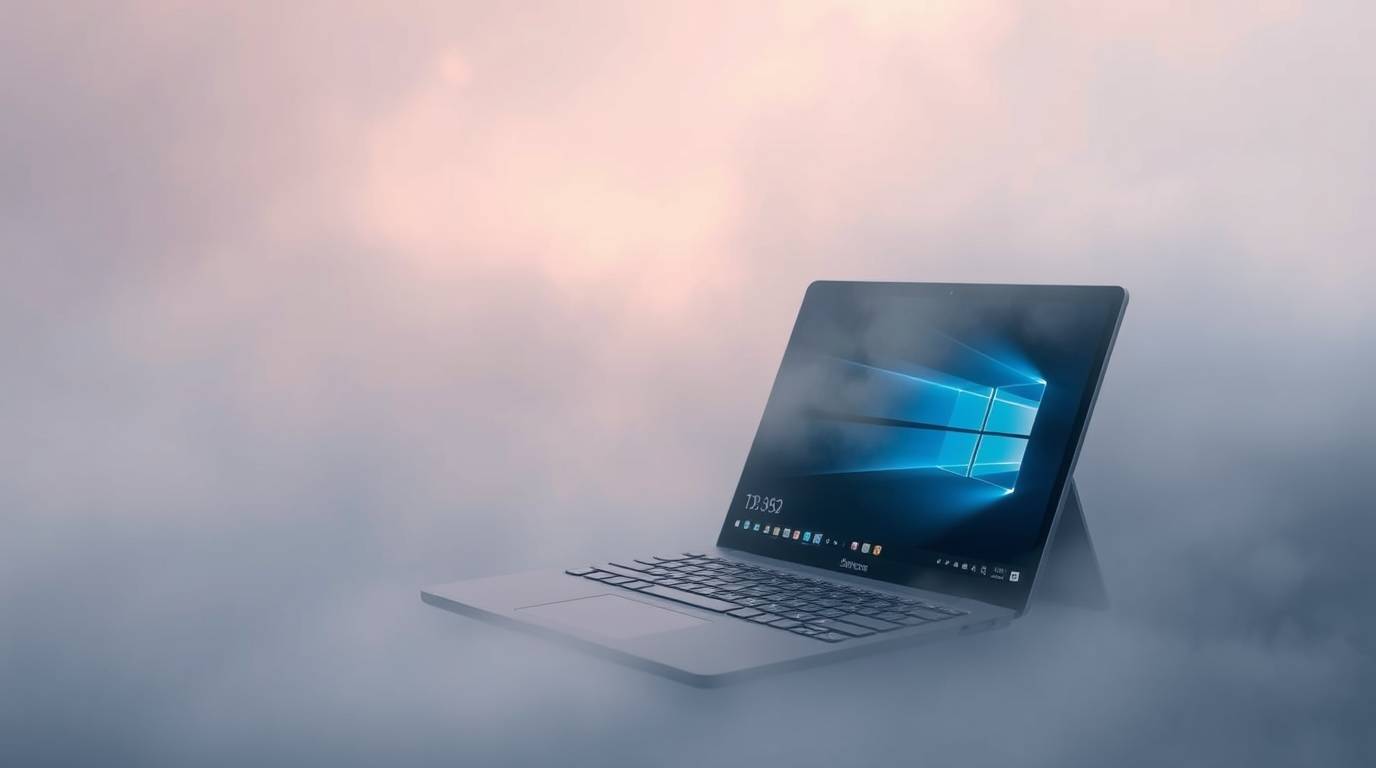
💻 Microsoft Surface Laptop 3: The Ultimate Guide to Specs, Upgrades, Troubleshooting & More
So, you've got your eyes on the Microsoft Surface Laptop 3, or maybe you're already the proud owner of this sleek, premium machine? Either way, you've come to the right place! No matter if you're wondering about its specifications, contemplating an SSD upgrade, troubleshooting a pesky issue, or just curious if it can handle Windows 11, we've got you covered with this comprehensive guide that leaves no stone unturned. 🎯
The Surface Laptop 3 represents Microsoft's vision of what a modern laptop should be: beautifully designed, powerfully equipped, and ready to tackle your daily computing needs without breaking a sweat. It's the kind of laptop that makes ya want to show it off at coffee shops while pretending to write the next great novel (but actually just browsing Reddit. We don't judge!).
📑 Table of Contents
- 1. What Is the Microsoft Surface Laptop 3?
- 2. Full Technical Specifications
- 3. Display Quality & Features
- 4. Processor Options & Performance
- 5. Battery Life: Real-World Expectations
- 6. Can You Upgrade the SSD? (Spoiler: Yes, Kind Of)
- 7. RAM Upgrade: The Hard Truth
- 8. Keyboard, Trackpad & Design
- 9. Ports & Connectivity
- 10. Windows 11 Compatibility & Upgrade
- 11. Common Problems & Troubleshooting
- 12. Tips & Tricks for Getting the Most Out of Your Surface
- 13. Should You Buy the Surface Laptop 3?
- 14. Conclusion & Key Takeaways
🌟 1. What Is the Microsoft Surface Laptop 3?
The Microsoft Surface Laptop 3 is the third generation of Microsoft's flagship laptop line, unveiled alongside the Surface Pro 7 and Surface Pro X in October 2019. This isn't just another laptop refresh — Microsoft made some significant improvements that addressed long-standing user complaints while maintaining the premium build quality and elegant design the Surface line is known for.
For the first time ever, Microsoft offered the Surface Laptop in two screen sizes: the familiar 13.5-inch model and an all-new 15-inch variant. This larger option brought something else groundbreaking to the Surface family — an AMD processor option, marking the first time Microsoft partnered with AMD for a Surface device. It's like Microsoft finally decided to invite the other kid from the chip neighborhood to the party! 🎉
The Surface Laptop 3 maintains the traditional clamshell laptop form factor — no fancy 360-degree hinges or detachable screens here. It's a laptop, pure and simple, and it does the laptop thing exceptionally well. Microsoft clearly designed this machine for professionals, students, and anyone who appreciates a device that combines aesthetic beauty with practical functionality.
Key improvements over the Surface Laptop 2 include the addition of a USB-C port (finally!), improved repairability with an accessible SSD, new aluminum finish options alongside the classic Alcantara fabric, and those powerful 10th-generation Intel Ice Lake or custom AMD Ryzen processors. The hidden antenna lines also give it a cleaner look that would make even Marie Kondo spark with joy.
📊 2. Full Technical Specifications
Before we dive deeper into each aspect, let's lay out all the specifications in a format that's easy to digest. Whether you're a spec-sheet enthusiast or just want the quick facts, this table has everything you need:
| Specification | 13.5-inch Model | 15-inch Model |
|---|---|---|
| Display | 13.5" PixelSense, 2256 x 1504 | 15" PixelSense, 2496 x 1664 |
| Aspect Ratio | 3:2 | 3:2 |
| Pixel Density | 201 PPI | 201 PPI |
| Processor (Intel) | Intel Core i5-1035G7 / i7-1065G7 | Intel Core i5-1035G7 / i7-1065G7 (Business) |
| Processor (AMD) | N/A | AMD Ryzen 5 3580U / Ryzen 7 3780U (Consumer) |
| Graphics | Intel Iris Plus Graphics | Intel Iris Plus / AMD Radeon Vega 9 or 11 |
| RAM | 8GB or 16GB LPDDR4x | 8GB, 16GB, or 32GB LPDDR4x |
| Storage | 128GB / 256GB / 512GB / 1TB SSD | 128GB / 256GB / 512GB / 1TB SSD |
| Battery | 45.8 Wh | 45.8 Wh |
| Battery Life | Up to 11.5 hours | Up to 11.5 hours |
| Weight | 2.79 lbs (1.27 kg) metal / 2.84 lbs Alcantara | 3.4 lbs (1.54 kg) |
| Dimensions | 308 x 223 x 14.5 mm | 339.5 x 244 x 14.7 mm |
| Ports | 1x USB-C, 1x USB-A, Surface Connect, 3.5mm audio | 1x USB-C, 1x USB-A, Surface Connect, 3.5mm audio |
| Camera | 720p HD with Windows Hello | 720p HD with Windows Hello |
| Wireless | Wi-Fi 6 (802.11ax), Bluetooth 5.0 | Wi-Fi 6 (802.11ax), Bluetooth 5.0 |
| Operating System | Windows 10 Home (upgradeable to Windows 11) | Windows 10 Home (upgradeable to Windows 11) |
🖥️ 3. Display Quality & Features
The PixelSense display on the Surface Laptop 3 is genuinely one of its strongest selling points. Both the 13.5-inch and 15-inch models feature that signature 3:2 aspect ratio that Surface devices are famous for, and once you've experienced it, going back to a standard 16:9 display feels like reading through a mail slot.
The 3:2 aspect ratio provides approximately 18% more vertical screen real estate compared to traditional widescreen displays. This translates to less scrolling when reading documents, more visible lines of code when programming, and a more natural viewing experience that better matches standard paper proportions. For productivity-focused users, this is an absolute game-changer.
The 13.5-inch model delivers a resolution of 2256 x 1504 pixels, while the 15-inch version bumps that up to 2496 x 1664 pixels. Both displays maintain an identical pixel density of 201 PPI — sharp enough to make text crisp and images detailed, but not so ridiculously high that you're unnecessarily taxing the GPU or draining battery faster.
Touchscreen & Pen Support
Yes, the Surface Laptop 3's display is fully touch-enabled with 10-point multi-touch support. While you won't be folding this device into a tablet (it's a traditional clamshell laptop, remember?), the touchscreen is surprisingly useful for quick scrolling, zooming into images, or tapping on-screen elements when your hands are already near the display. It also fully supports the Microsoft Surface Pen for those who enjoy digital inking, note-taking, or artistic endeavors.
💡 Pro Tip: The Surface Pen is sold separately, but it's a worthwhile investment if you enjoy annotating PDFs, sketching ideas, or taking handwritten notes. The display's pen support is excellent, with minimal latency and natural pressure sensitivity.
Display Brightness & Color Accuracy
The display typically reaches around 350-400 nits of brightness, which is adequate for most indoor environments but might struggle under direct sunlight. Color accuracy is good out of the box, with reviewers noting well-calibrated colors that work well for photo editing and creative work, though it lacks HDR support or the super-wide color gamuts found in some professional-grade displays.
One potential issue some users have reported is backlight bleeding along the edges of the display, particularly noticeable on dark backgrounds. This seems to vary by unit, so if you notice significant bleed on yours, don't hesitate to exchange it within the return period.
⚡ 4. Processor Options & Performance
The Surface Laptop 3 offers a fascinating choice of processors depending on which model and configuration you choose. This was actually a pretty big deal when the laptop launched, as it marked Microsoft's first foray into AMD territory for their flagship devices.
Intel Options (13.5-inch and 15-inch Business)
The Intel configurations use 10th-generation Ice Lake processors, specifically the Core i5-1035G7 and Core i7-1065G7. These chips were built on Intel's 10nm process (a big deal at the time) and brought significant improvements to integrated graphics performance thanks to the Intel Iris Plus Graphics.
- Intel Core i5-1035G7: 4 cores, 8 threads, base 1.2GHz, turbo up to 3.7GHz
- Intel Core i7-1065G7: 4 cores, 8 threads, base 1.3GHz, turbo up to 3.9GHz
In real-world usage, these processors handle everyday tasks like web browsing, document editing, email, and video streaming without breaking a sweat. The Core i7 variant also proves capable for light photo editing, video editing, and even some casual gaming thanks to the improved Iris Plus graphics.
AMD Options (15-inch Consumer)
The consumer 15-inch model features custom "Surface Edition" AMD Ryzen processors developed in partnership between Microsoft and AMD. These aren't your standard off-the-shelf Ryzen chips — they're specifically tuned for the Surface Laptop 3:
- AMD Ryzen 5 3580U: 4 cores, 8 threads with AMD Radeon Vega 9 Graphics
- AMD Ryzen 7 3780U: 4 cores, 8 threads with AMD Radeon RX Vega 11 Graphics
The AMD variants offer competitive CPU performance and notably strong integrated graphics — the Vega graphics can actually handle some light gaming better than the Intel options. However, the AMD chips are based on the older Zen+ architecture (12nm), which means they're not quite as power-efficient as Intel's 10nm Ice Lake chips, resulting in slightly shorter battery life.
Performance in Daily Use
Regardless of which processor you choose, the Surface Laptop 3 handles typical productivity workloads admirably. Benchmarks show strong performance for office applications, web browsing, media consumption, and creative tasks. The laptop can easily handle dozens of browser tabs, streaming video, and running Microsoft Office applications simultaneously without significant slowdown.
For more demanding tasks like video editing in Premiere Pro or 3D rendering, you'll want to manage your expectations. This is an ultrabook, not a workstation. It'll do the job, but it won't be setting any speed records. If you're regularly working with 4K video or complex 3D projects, you might want to look at devices with discrete graphics cards.
🔋 5. Battery Life: Real-World Expectations
Microsoft claims the Surface Laptop 3 can achieve up to 11.5 hours of battery life based on typical usage. Now, before you start planning that 12-hour flight with no power outlet, let's get real about what you can actually expect.
Real-World Battery Performance
In practical testing by various reviewers and users, here's what you're likely to see:
- Light usage (web browsing, document editing, email): 8-10 hours
- Mixed usage (productivity apps, streaming, multitasking): 7-9 hours
- Heavy usage (video editing, gaming, intensive tasks): 4-6 hours
- Video playback only: 9-11 hours
The Intel models generally edge out the AMD variants in battery efficiency, particularly during video playback where Intel's hardware video decoding excels. The Ryzen-based Surface Laptop 3 typically achieves about 8-9 hours in mixed usage scenarios.
Fast Charging
One standout feature is the Surface Laptop 3's fast charging capability. With the included 65-watt charger, you can go from 0% to approximately 80% in about an hour. That's incredibly useful when you're running low and need to grab some juice before your next meeting or class.
The charger uses Microsoft's proprietary Surface Connect port, which features a magnetic connection similar to Apple's old MagSafe. This means if someone trips over your power cable, the cord disconnects safely rather than dragging your expensive laptop onto the floor. You can also charge via USB-C, though it'll be slower than using the dedicated Surface charger.
🔌 Battery Tip: To maximize battery life, keep your screen brightness around 50-60%, use the "Better Battery" power mode, and close unnecessary background applications. These simple adjustments can add 1-2 hours to your runtime.
💾 6. Can You Upgrade the SSD? (Spoiler: Yes, Kind Of)
Here's where things get interesting. One of the major criticisms of earlier Surface laptops was their complete lack of user-serviceability. The Surface Laptop 2 famously received a 0 out of 10 repairability score from iFixit — they literally described it as a "glue-filled monstrosity."
The Surface Laptop 3 represents a significant improvement. Microsoft made the SSD technically removable, and even published official service guides for replacing it. However — and this is a big however — Microsoft officially states that the SSD is "not user-removable" and should only be replaced by a "skilled technician."
How the SSD Upgrade Works
The Surface Laptop 3 uses an M.2 2230 form factor SSD (that's the smaller, shorter M.2 size). To access it, you need to:
- Remove the four rubber feet from the bottom of the laptop
- Unscrew the Torx Plus screws hidden underneath
- Carefully separate the keyboard deck (held by magnets, thankfully no more glue!)
- Use a T5 Torx driver to remove the single screw securing the SSD
- Swap the SSD and reassemble
The procedure isn't overly complicated for someone comfortable with electronics, but it does require specialized tools and care. iFixit gave the Surface Laptop 3 a 5 out of 10 repairability score — a massive improvement over its predecessor.
Compatible Replacement SSDs
If you're brave enough to attempt the upgrade, you'll need an M.2 2230 NVMe SSD. Some popular options include:
- Kioxia (Toshiba) BG4: Available in various capacities, excellent performance
- Sabrent Rocket 2230: Available in 256GB, 512GB, and 1TB options
- Samsung PM991: OEM drive found in various laptops
- Western Digital SN530: Another reliable M.2 2230 option
You can find compatible SSDs on Amazon's M.2 2230 SSD selection.
⚠️ Important Warning: Attempting an SSD upgrade yourself may void your warranty. Microsoft's official stance is that only authorized technicians should perform this procedure. If your Surface is still under warranty and something goes wrong during an upgrade attempt, you might be out of luck. Proceed at your own risk!
Microsoft's Official Replacement SSDs
For those who want to stay within Microsoft's ecosystem, the company actually sells official replacement SSDs for the Surface Laptop 3 through the Microsoft Store. These are the same drives used in the original manufacturing, available in 128GB, 256GB, 512GB, and 1TB capacities. They're not cheap, but they guarantee compatibility and come with Microsoft's blessing for out-of-warranty repairs.
🧠 7. RAM Upgrade: The Hard Truth
Now for the bad news. If you were hoping to upgrade the RAM on your Surface Laptop 3... I'm sorry to be the bearer of sad tidings. The RAM is soldered directly to the motherboard, making it completely non-upgradeable.
This isn't unique to the Surface Laptop 3 — many ultrabooks take this approach to save space and reduce thickness. However, it does mean that the amount of RAM you choose when purchasing is the amount you'll have for the laptop's entire lifespan.
How Much RAM Do You Actually Need?
- 8GB: Suitable for basic productivity tasks, web browsing, document editing, and media consumption. Will feel constrained with heavy multitasking or resource-intensive applications.
- 16GB: The sweet spot for most users. Handles multitasking well, works comfortably for photo editing, light video work, and development tasks. This is our recommended minimum for future-proofing.
- 32GB (15-inch only): For power users, developers running virtual machines, or those working with large datasets and professional creative applications.
💰 Buying Advice: Since you can't upgrade RAM later, we strongly recommend opting for at least 16GB if your budget allows. The upgrade cost at purchase is almost always cheaper than the regret of running out of memory two years down the line. Trust us on this one!
⌨️ 8. Keyboard, Trackpad & Design
Microsoft absolutely nailed the typing experience on the Surface Laptop 3. The keyboard features well-spaced keys with satisfying travel and a responsive, springy feel that makes extended typing sessions genuinely pleasant. Many reviewers have compared it favorably to ThinkPad keyboards — high praise indeed in the laptop world!
Keyboard Deck Options
The Surface Laptop 3 offers two distinct keyboard deck options:
- Alcantara Fabric: Microsoft's signature material, soft and comfortable to rest your palms on. Available in Platinum and Cobalt Blue. The downside? It can show wear over time and requires more careful cleaning to prevent staining.
- Metal (Aluminum): New to the Surface Laptop 3, available in Sandstone and Matte Black. More durable, easier to clean, and gives the laptop a more traditional premium laptop feel. The 15-inch model only comes in metal.
The keyboard includes backlighting with three brightness levels, making it easy to work in dim environments. The key travel is comfortable, and there's very little flex even during aggressive typing sessions.
The Trackpad
The trackpad is a glass-covered precision touchpad that's large, responsive, and smooth. Windows precision drivers ensure accurate tracking and reliable multi-finger gestures. Clicking is quiet and satisfying — none of that annoying rattling you find on cheaper laptops.
Overall Design & Build Quality
The Surface Laptop 3 is simply a gorgeous machine. The aluminum chassis feels solid and premium, with minimal flex in both the lid and the base. At just 2.79 pounds for the 13.5-inch model and 3.4 pounds for the 15-inch version, it's lightweight enough for all-day portability without feeling flimsy.
The design is clean and minimalist, with a small Microsoft logo on the lid being the only external branding. It's the kind of laptop you can proudly pull out in a business meeting or a coffee shop. The thin profile (under 15mm) means it slides easily into laptop sleeves and backpack pockets.
🔌 9. Ports & Connectivity
Let's address the elephant in the room: the Surface Laptop 3's port selection is... sparse. It's the one area where this laptop consistently draws criticism.
Available Ports
- 1x USB-C 3.1: Data transfer, video output, and charging capability. NOT Thunderbolt 3.
- 1x USB-A 3.0: For your legacy devices and peripherals
- 1x Surface Connect: Proprietary magnetic charging port, also supports Surface Dock
- 1x 3.5mm headphone jack: Because some of us still use wired headphones!
What's Missing
The big omissions that users frequently complain about:
- No Thunderbolt 3: The USB-C port is just USB 3.1, meaning no external GPU support and slower external drive speeds compared to Thunderbolt
- No SD card slot: A disappointment for photographers and content creators
- No HDMI: You'll need a USB-C adapter to connect to external displays
- Only ONE USB-C port: On a 15-inch laptop, this feels particularly stingy
If you need more connectivity, consider picking up the Surface Dock or a good USB-C hub. The Amazon USB-C hub selection has plenty of affordable options that add HDMI, additional USB ports, SD card readers, and ethernet.
Wireless Connectivity
On the wireless front, the Surface Laptop 3 is well-equipped with Wi-Fi 6 (802.11ax) support and Bluetooth 5.0. Wi-Fi 6 provides faster speeds and better performance in crowded network environments, while Bluetooth 5.0 ensures stable connections to wireless peripherals and headphones.
🪟 10. Windows 11 Compatibility & Upgrade
Great news for Surface Laptop 3 owners: your device is fully compatible with Windows 11! Microsoft has confirmed that all Surface Laptop 3 models (both Intel and AMD variants, 13.5-inch and 15-inch) meet the Windows 11 system requirements.
How to Upgrade to Windows 11
If your Surface Laptop 3 is still running Windows 10, upgrading to Windows 11 is straightforward:
- Open Settings from the Start menu
- Navigate to Windows Update
- Click Check for updates
- If Windows 11 is available, you'll see the option to download and install
- Follow the on-screen prompts to complete the upgrade
Before upgrading, make sure to:
- Back up your important files (always a good practice!)
- Ensure your Surface has at least 64GB of free storage space
- Connect to a reliable Wi-Fi network
- Plug in your charger to prevent interruptions
Windows 11 Performance on Surface Laptop 3
Users report that Windows 11 runs well on the Surface Laptop 3. The 10th-gen Intel and AMD Ryzen processors handle the new operating system without issues, and many users appreciate the refreshed interface and new features like Snap Layouts and the centered taskbar.
Microsoft continues to release firmware and driver updates specifically optimized for the Surface Laptop 3 running Windows 11, so you can expect ongoing support and improvements.
🔄 Update Tip: After upgrading to Windows 11, make sure to install all available updates and check the Microsoft Store for Surface-specific firmware updates. You can also download the latest drivers directly from Microsoft's support site for optimal performance.
🔧 11. Common Problems & Troubleshooting
Even the best laptops can have their quirks. Here are the most commonly reported issues with the Surface Laptop 3 and how to address them:
Issue 1: Display Backlight Bleeding
Some units exhibit noticeable backlight bleeding along the edges of the display, particularly visible on dark backgrounds or during video playback with black bars.
Solution: Unfortunately, backlight bleeding is a hardware issue that can't be fixed with software. If your unit shows significant bleeding, contact Microsoft support for a potential replacement while under warranty. For minor bleeding, you may simply need to accept it as a trade-off of IPS panel technology.
Issue 2: Screen Flickering or Display Issues
Some users report intermittent screen flickering, especially at lower brightness levels due to PWM (Pulse Width Modulation) dimming.
Solutions:
- Update your display drivers through Device Manager or Windows Update
- Keep brightness above 50% if flickering bothers you (PWM is more noticeable at lower brightness)
- Disable hardware acceleration in affected applications
- Run the Surface Diagnostic Toolkit from the Microsoft Store
Issue 3: Battery Draining Fast
If your battery life seems shorter than expected:
Solutions:
- Check for background apps consuming power in Task Manager
- Use the "Better Battery" power mode instead of "Best Performance"
- Reduce screen brightness
- Update to the latest Windows and Surface firmware
- Run the battery report (
powercfg /batteryreportin Command Prompt) to check battery health
Issue 4: Wi-Fi Connectivity Problems
Some users experience Wi-Fi drops or slow connections:
Solutions:
- Run the Windows Network Troubleshooter (Settings → Troubleshoot → Internet connections)
- Update Wi-Fi drivers through Device Manager
- Disable and re-enable the wireless adapter
- Restart your router
- Forget the network and reconnect
Issue 5: Surface Won't Turn On
If your Surface Laptop 3 won't power on:
Solutions:
- Force Restart: Press and hold the power button for 20-30 seconds, then release and press again
- Check the charger: Ensure it's properly connected and the LED indicator is lit
- Try a different outlet: Rule out power source issues
- Two-button shutdown: Hold Volume Up + Power for 15 seconds, wait 10 seconds, then power on
- Charge for at least 30 minutes: The battery may be completely depleted
Issue 6: Overheating
During intensive tasks, the laptop may get warm:
Solutions:
- Ensure air vents are not blocked
- Use the "Recommended" power mode instead of "Best Performance" when on battery
- Clean dust from vents with compressed air
- Use a laptop cooling pad for extended heavy workloads
- Update to the latest firmware, which may include thermal management improvements
🩺 Diagnostic Tool: Microsoft provides a free Surface Diagnostic Toolkit available from the Microsoft Store. This tool can automatically detect and fix many common issues, update drivers, and check hardware health. It's your first stop for troubleshooting!
✨ 12. Tips & Tricks for Getting the Most Out of Your Surface
Ready to become a Surface Laptop 3 power user? Here are some tips and tricks to enhance your experience:
Windows Hello Face Recognition
Set up Windows Hello for instant, password-free login. Go to Settings → Accounts → Sign-in options and register your face. It's fast, secure, and makes you feel like you're in a sci-fi movie every time you open your laptop. 🚀
Customize Touch Gestures
The precision trackpad supports various multi-finger gestures:
- Three-finger swipe up: Task View (see all open windows)
- Three-finger swipe down: Show desktop
- Three-finger swipe left/right: Switch between apps
- Four-finger tap: Open Action Center
Customize these in Settings → Bluetooth & devices → Touchpad.
Battery Saver Mode
When you need to squeeze every last minute of battery life, enable Battery Saver mode. It limits background activity, reduces screen brightness, and turns off some visual effects. Access it quickly through the battery icon in the system tray.
Night Light for Eye Comfort
Working late? Enable Night Light (Settings → System → Display) to reduce blue light emission in the evening. Your eyes (and sleep schedule) will thank you!
Surface App
Install the Surface app from the Microsoft Store. It provides hardware diagnostics, warranty information, and allows you to customize features like keyboard backlighting and pen sensitivity.
Quick Charge When Needed
Remember that the Surface Laptop 3 supports fast charging. If you're short on time, even 15-30 minutes of charging can give you a significant battery boost. The included Surface Connect charger charges faster than USB-C, so use it when speed matters.
🤔 13. Should You Buy the Surface Laptop 3?
The big question! Let's break down who should — and shouldn't — consider the Surface Laptop 3:
✅ Pros
- Premium build quality and gorgeous design
- Excellent keyboard and trackpad
- Beautiful 3:2 aspect ratio display
- Solid battery life for real-world use
- Fast charging capability
- Quiet operation during normal tasks
- Windows Hello face recognition
- Upgradeable SSD (for the brave)
- Windows 11 compatible
- Lightweight and portable
❌ Cons
- Limited port selection (no Thunderbolt, single USB-C)
- RAM is not upgradeable
- No SD card slot
- Storage upgrades are expensive from Microsoft
- Some units have backlight bleed issues
- Average webcam quality (720p)
- Large display bezels by modern standards
- No discrete GPU option for serious gaming
Ideal For:
- Professionals who value build quality and design
- Students who need a reliable, portable laptop for notes and assignments
- Business users who primarily work with Microsoft 365 applications
- Anyone who appreciates a premium Windows laptop experience
- Users who want touchscreen and pen input in a traditional laptop form
Not Ideal For:
- Gamers who want serious graphics performance
- Creative professionals needing Thunderbolt 3 for external GPUs or fast storage
- Users who need lots of ports without dongles
- Photographers who want a built-in SD card slot
- Budget-conscious buyers (there are cheaper alternatives with similar specs)
Where to Buy
You can find the Surface Laptop 3 at various retailers. Check out Microsoft Surface Laptop 3 on Amazon for current prices and deals. Also worth checking the Microsoft Store directly for potential bundle offers or official refurbished units.
🎯 14. Conclusion & Key Takeaways
The Microsoft Surface Laptop 3 represents everything a modern ultrabook should be: beautifully designed, well-built, and capable of handling everyday computing tasks with ease. While it's not perfect — those limited ports and non-upgradeable RAM are real drawbacks — it excels in the areas that matter most for productivity-focused users.
Key Takeaways:
- ✅ The 3:2 display ratio is fantastic for productivity — you won't want to go back to 16:9
- ✅ Both Intel and AMD processor options deliver solid performance for daily tasks
- ✅ Battery life realistically hits 8-10 hours for most users, with fast charging when you need it
- ✅ The SSD is upgradeable (with some effort), but RAM is permanently soldered — choose wisely at purchase!
- ✅ Full Windows 11 compatibility means this laptop has plenty of life left
- ✅ The keyboard is genuinely excellent — one of the best in the ultrabook category
- ⚠️ Limited ports mean you'll probably want a USB-C hub
Whether you're a student, professional, or just someone who appreciates quality hardware, the Surface Laptop 3 delivers a premium experience that justifies its price tag. It's proof that Microsoft knows how to build hardware that rivals — and in some ways surpasses — the MacBook competition.
Now go forth and compute with confidence! 🚀💻
📺 Watch: Surface Laptop 3 In-Depth Review
Want to see the Surface Laptop 3 in action? Check out this comprehensive video review that covers everything from design and performance to real-world usage:
Have questions about the Surface Laptop 3? Drop them in the comments below, and we'll do our best to help! Happy computing! 💚