Lenovo ThinkPad vs. ThinkBook: The Ultimate Business Laptop Showdown 💻
Two "Think" brands, one Lenovo family, completely different vibes. Let's find out which one deserves a spot in your laptop bag.
If you've ever browsed Lenovo's website looking for a work laptop, you've probably noticed two names that sound suspiciously similar: ThinkPad and ThinkBook. Same "Think" prefix, same Lenovo family tree, and yet these two laptop lines are built for very different people with very different needs (and budgets). The ThinkPad is the grizzled veteran of business laptops, born out of IBM's engineering labs back in 1992 and still going strong with a reputation that precedes it into every boardroom. The ThinkBook, on the other hand, is the fresh faced newcomer that launched in 2019, designed to bring business essentials to freelancers, startups, and small businesses without the premium price tag.
So which one should you buy? That depends on what you care about most. In this guide, we break down every meaningful difference between the ThinkPad and ThinkBook, from build quality and keyboard feel to security features and price. By the end, you'll know exactly which laptop line matches your workflow, your wallet, and your taste in design. Let's get into it. 🚀
📊 Quick Comparison Table: ThinkPad vs. ThinkBook at a Glance
Before we dive deep into the details, here's a side by side overview of what separates these two lineups. Think of this as your cheat sheet for the rest of the article.
| Feature | Lenovo ThinkPad | Lenovo ThinkBook |
|---|---|---|
| Target Audience | Enterprise, corporate, power users | SMBs, freelancers, startups, students |
| Launched | 1992 (originally IBM) | 2019 |
| Build Material | Carbon fiber, magnesium alloy, glass fiber reinforced plastic | Aluminum alloy chassis |
| MIL-STD Tested | Yes (MIL-STD-810H on most models) | No (standard durability testing) |
| Keyboard | Legendary, spill resistant + TrackPoint | Good quality, standard layout, no TrackPoint |
| Security | ThinkShield, TPM, IR camera, BIOS management, PrivacyGuard | TPM, fingerprint reader, webcam privacy shutter |
| Display Options | IPS, OLED, up to 2.8K, touchscreen options | IPS, up to 2.8K, Dolby Vision on select models |
| Battery Life | Up to 12+ hours on many models | Up to 8-10 hours on most models |
| Typical Weight | 2.2 to 3.5 lbs (varies by sub series) | 3.0 to 3.9 lbs |
| Price Range | $1,000 to $3,500+ | $600 to $1,500 |
| Design Aesthetic | Classic black, utilitarian, boxy | Modern, sleek, silver/dual tone |
| Repairability | Generally good, serviceable components | More limited, fewer user-replaceable parts |
| Best For | Heavy workloads, travel warriors, IT departments | Everyday business tasks, budget conscious pros |
🔍 Want a detailed spec by spec comparison of specific models? Use our free Compare Tool to match any two laptops side by side, or take our quick recommendation quiz!
Compare Laptops Get a Personal Recommendation📜 A Brief History: The IBM Legacy vs. The Modern Newcomer
To truly understand why these two lines feel so different, it helps to know where they came from.
The ThinkPad lineage stretches all the way back to 1992, when IBM introduced it as a no-nonsense business machine. Fun fact: the original design was inspired by a Japanese bento box. That distinctive black, boxy shape has stuck around ever since, becoming one of the most recognizable laptop designs in the world. Lenovo acquired the ThinkPad brand from IBM in 2005 and has continued to refine it while keeping the DNA intact. The ThinkPad's reputation was built on keyboards that typists adore, chassis that survive being dropped off desks (and occasionally out of windows, if internet legends are to be believed), and a seriousness about security that makes IT departments very happy.
The ThinkBook, by contrast, is barely old enough to order its own coffee. Launched in 2019, it was Lenovo's answer to a growing market of freelancers, remote workers, and small business owners who wanted ThinkPad-like reliability without paying ThinkPad-like prices. The ThinkBook borrowed some features from its older sibling (TPM chips, webcam shutters, solid processors) but wrapped them in a more modern, aluminum body aimed at people who also care about how their laptop looks at a coffee shop. Think of the ThinkBook as the ThinkPad's cooler, slightly less serious younger sibling. 😎
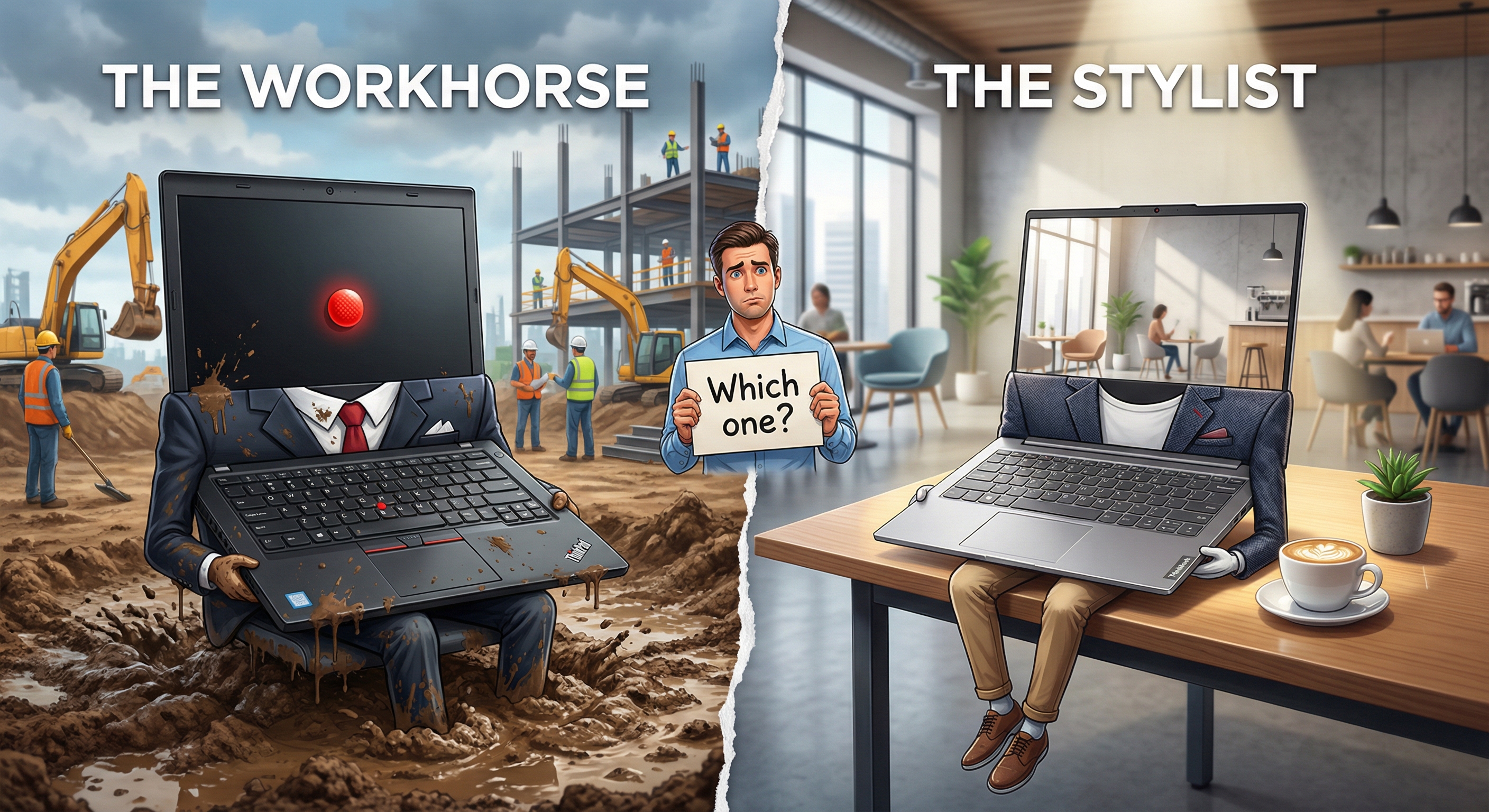
🏗️ Design and Build Quality: Tank vs. Runway Model
This is where the two laptops diverge most dramatically, and honestly, it is the first thing you will notice when holding them side by side.
ThinkPad: Built Like a Bunker
ThinkPads are tested against MIL-STD-810H standards, which means they endure a gauntlet of tests for extreme temperature, humidity, altitude, vibration, and drops. The materials are typically a combination of carbon fiber, magnesium alloy, and glass fiber reinforced plastic, depending on the sub series. The result is a laptop that feels rugged and reassuring in your hands, even if it won't be winning any beauty contests. The classic all black design with the red ThinkPad logo on the lid is as iconic as it is polarizing: some people love the no-nonsense aesthetic, while others find it about as exciting as a stapler.
Models like the ThinkPad X1 Carbon have managed to shave down the weight to as little as 2.2 pounds while keeping the MIL-STD toughness, which is genuinely impressive. The reinforced hinges, internal roll cages, and spill resistant keyboards all contribute to a laptop that is built to survive years of daily commuting and conference room abuse.
ThinkBook: Looking Good While Getting It Done
ThinkBooks go for a different kind of appeal. They use an aluminum alloy chassis that gives them a clean, modern, almost MacBook-adjacent look. The dual tone silver finish and slim profile make them far more visually appealing to anyone who cares about aesthetics. They are lighter and slimmer than many ThinkPad models (though not the ultralight X1 series), making them easy to toss in a bag for a commute or a trip to the local co-working space.
However, ThinkBooks do not carry MIL-STD certification. They are solidly built for everyday life, sure, but they are not designed to survive a fall off a pickup truck bed or work in a dusty warehouse. For most people working at a desk or on their couch, this is not a problem at all. But if your laptop lives a rough life, the ThinkPad is the safer bet.
🏆 Verdict on Design: ThinkPad wins on durability and toughness. ThinkBook wins on style and modern aesthetics. Your priority decides the winner here.
⌨️ Keyboard and TrackPoint: The Typing Experience That Divides People
If you have ever talked to a ThinkPad fan for more than 30 seconds, they have almost certainly mentioned the keyboard. The ThinkPad keyboard is the stuff of legend. It is consistently ranked among the best laptop keyboards in the industry, with generous key travel, a satisfying tactile feel, and a layout that heavy typists find practically addictive. Many ThinkPad models also feature spill resistant keyboards, which means your morning coffee accident won't necessarily end in tears.
And then there is the TrackPoint. That tiny red nub sitting between the G, H, and B keys like a little cherry topping. Some people swear by it for precise cursor control without ever leaving the home row. Others have literally never used it. Either way, it is a ThinkPad exclusive feature, and the folks who love it really, truly love it with a passion that borders on spiritual. 🔴
The ThinkBook keyboard is perfectly respectable. It offers comfortable key travel, a quiet typing experience, and a generously sized touchpad with multi-gesture support. For most people, it is more than good enough for daily work. But it does not have the TrackPoint, and the tactile feel does not quite match the precision of the ThinkPad. If you type 8+ hours a day and your keyboard is the most intimate relationship in your life, the ThinkPad is where you should be.
✅ Pro tip: If you've never used a TrackPoint before, don't write it off. Give it a solid week and you might become a convert. Once you get used to keeping your fingers on the home row while navigating, going back to a touchpad feels like going back to dial-up internet.
⚡ Performance and Hardware: Raw Power vs. Smart Value
Here is the good news: both ThinkPad and ThinkBook use modern Intel Core and AMD Ryzen processors, so neither line is going to leave you staring at a loading screen while wondering about the meaning of life. However, there are some meaningful differences in how far each line can go.
ThinkPad: Performance With No Ceiling
ThinkPads offer a wider range of processor options and configurations. The ThinkPad T14 comes with both AMD Ryzen PRO and Intel Core Ultra options, and higher end models like the X1 Carbon Gen 13 feature Intel Core Ultra 7 processors with up to 32GB (and sometimes 64GB) of fast DDR5 RAM. For true powerhouse work, the ThinkPad P series mobile workstations pack dedicated GPUs and are ISV certified for professional applications like AutoCAD, SolidWorks, and Adobe Creative Suite.
You can also configure ThinkPads with up to 2TB of NVMe SSD storage, and newer models support Qualcomm Snapdragon X Elite processors for users who need all-day battery life and always-on connectivity. ThinkPads also tend to offer more serviceable internals. On many models, you can upgrade RAM or swap SSDs without a degree in microsurgery.
ThinkBook: Smart Specs at Smart Prices
ThinkBooks run on the same generation Intel Core and AMD Ryzen chips, but they tend to top out at mid-range configurations. The ThinkBook 14 Gen 8 with an Intel Core Ultra processor and 16GB of RAM handles everyday business tasks (email, spreadsheets, web browsing, video calls) like a champ. Newer models like the ThinkBook 16p Gen 6 push into higher performance territory with more powerful processors and better integrated graphics, but they are the exception rather than the rule.
For the majority of users who don't need to render 3D models or compile massive codebases, the ThinkBook delivers perfectly capable performance at a significantly lower price. You are not getting a race car, but you are getting a reliable daily driver that handles everything you throw at it.
💡 Quick rule of thumb: If your daily workflow involves web browsers, Microsoft Office, Zoom calls, and maybe some light photo editing, the ThinkBook is more than enough. If you run virtual machines, heavy databases, CAD software, or anything that makes your current laptop fan sound like a helicopter, look at the ThinkPad.
🖥️ Display Options: From Boardroom to Binge Watching
Both lineups have stepped up their display game significantly in recent generations. Gone are the days when business laptops meant staring at a washed out, dim TN panel all day.
ThinkPad models offer a wide spectrum of display choices. The X1 Carbon Gen 13, for instance, offers a stunning 2.8K OLED panel with 120Hz refresh rate and 400 nits of brightness, which is gorgeous for both spreadsheets and Netflix. Other ThinkPad models offer IPS panels in 1920x1200 (WUXGA) or 2240x1400 (2.2K) resolutions with solid color accuracy. Touchscreen options are available across many models, and some higher end configurations come with anti-glare coatings optimized for outdoor work.
ThinkBook displays are also quite good, with 14 to 16 inch IPS panels available in WUXGA and higher resolutions. Many models support Dolby Vision for better HDR content playback, and you get solid 300 nit brightness on most configurations. The ThinkBook 16p Gen 6 even offers a higher resolution display that rivals some ThinkPad options. That said, you generally won't find OLED options on most ThinkBook models, and the overall range of display configurations is narrower.
For everyday work, either lineup will serve you well. But if you are a creative professional or someone who spends a lot of time staring at text and wants the absolute best visual clarity, the ThinkPad's OLED options are hard to beat.
🔒 Security Features: Fort Knox vs. Smart Lock
This is where the gap between the two lines gets serious, and where IT departments tend to make their final call.
ThinkPad security is enterprise grade, full stop. The ThinkShield security suite covers everything from hardware encryption to self-healing BIOS, which basically means your laptop can fix its own firmware if it detects tampering. You also get:
- TPM 2.0 for hardware level encryption of passwords and certificates
- IR cameras for Windows Hello facial recognition
- Fingerprint readers integrated into the power button or palm rest
- ThinkShutter physical webcam privacy cover
- PrivacyGuard display option that narrows the viewing angle so nosy seatmates on your flight can't read your emails
- Enterprise BIOS management for IT departments to lock down and control devices remotely
- Optional smart card reader on select models
ThinkBook security is solid but more streamlined. You get TPM 2.0, a fingerprint reader, and a webcam privacy shutter on most models. Some models offer IR cameras for facial recognition. These are perfectly good security features for a small business or individual professional, but you are missing the enterprise management tools, the PrivacyGuard screen option, and the self-healing BIOS that make ThinkPads the darling of corporate IT departments.
⚠️ If your company has an IT department that manages device security and deployment, they will almost certainly steer you toward a ThinkPad. The enterprise management features alone can save hours of headaches. If you're an independent worker managing your own security, the ThinkBook's features are more than adequate for staying safe.
🔋 Battery Life: Who Lasts Longer on a Single Charge?
Battery life is where the ThinkPad typically pulls ahead, and it is not a small difference.
Many ThinkPad models pack 57Wh or larger batteries and come with power management features that squeeze out impressive longevity. The ThinkPad T14 Gen 6 can manage a full workday on a single charge, and the X1 Carbon Gen 13 claims up to 13+ hours depending on the configuration and workload. ThinkPads also come with Lenovo's RapidCharge technology, which can get you to around 80% in about an hour. The newer Snapdragon powered ThinkPad models push battery life even further thanks to ARM architecture's inherent power efficiency.
ThinkBook models typically ship with 45Wh to 60Wh batteries, and real world battery life lands in the 6 to 10 hour range depending on the model and how hard you are pushing it. The ThinkBook 14 Gen 8 offers Rapid Charge Pro that can hit 50% in about 30 minutes, which is great for topping up during a quick lunch break. But for all day marathon sessions without a charger, the ThinkPad generally has the edge.
If you travel frequently or find yourself working in places where power outlets are scarce, this is a category worth paying attention to. The difference between 8 hours and 12+ hours can mean the difference between finishing your work and doing the awkward power outlet hunt at an airport. ✈️
🔌 Ports and Connectivity: Getting Plugged In
Both lineups offer solid modern connectivity, but ThinkPads tend to provide more options, especially for users who like to stay plugged in to multiple devices.
A typical ThinkPad (like the T14 Gen 6) gives you Thunderbolt 4 ports, USB-A 3.2, USB-C, HDMI 2.1, a headphone/mic combo jack, and on some models, an RJ-45 Ethernet port built right in. The X1 Carbon drops the Ethernet port to keep things slim, but most other ThinkPad sub series keep it. WiFi 6E or WiFi 7 and Bluetooth 5.3 come standard on current generation models, and optional 4G/5G WWAN cards are available for always-on cellular connectivity.
ThinkBook models offer a similar core set of ports: USB-C (Thunderbolt 4 on some models), USB-A, HDMI, a combo audio jack, and an SD card reader (which is a nice touch for content creators). WiFi 6E and Bluetooth 5.3 are standard across most current models. However, you generally won't find WWAN options or the same breadth of docking support that ThinkPads offer.
For most users, the ThinkBook's connectivity is perfectly fine. But if you need to connect to a corporate dock, use an Ethernet cable regularly, or need cellular connectivity, the ThinkPad has you covered with more options.
💰 Price and Value: What Are You Actually Paying For?
Let's talk money, because this is often where the decision actually gets made.
ThinkBook laptops typically start around $600 to $700 and max out around $1,500 for higher end configurations. That gets you a well built aluminum laptop with a solid processor, decent display, and the essential business security features. For a freelancer or small business owner who needs a reliable daily driver without breaking the bank, the value proposition here is excellent. You are getting maybe 80% of the ThinkPad experience at 50% of the price.
ThinkPad models start around $1,000 for entry level configurations (like the ThinkPad E series or a base T14) and can climb all the way to $3,500+ for a fully loaded X1 Carbon with an OLED display, 2TB SSD, and top shelf processor. The ThinkPad P series workstations go even higher. You are paying a premium for the military grade durability, the legendary keyboard, the enterprise security stack, and the overall build quality that makes ThinkPads last for years.
Here is an easy way to think about it: the ThinkBook is a great value buy. The ThinkPad is a great investment. If you plan to use your laptop for 4 to 5+ years and need it to survive that entire time, the ThinkPad's upfront cost often makes more sense in the long run.
Looking for Specific Deals?
If you are shopping for either lineup, here are some solid picks to consider:
- 🔗 Check price: ThinkPad X1 Carbon Gen 13
- 🔗 Check price: ThinkPad X1 Carbon (OLED)
- 🔗 Check price: Lenovo ThinkBook 14
- 🔗 Check price: ThinkPad T14 Gen 5
🏅 Popular Models Worth Considering
Both the ThinkPad and ThinkBook families are big, so let's narrow things down to the models that are actually worth your attention right now.
Top ThinkPad Models
- ThinkPad X1 Carbon (Gen 13): The crown jewel. Weighs just 2.2 lbs, offers OLED display options, Intel Core Ultra 7 processors, up to 32GB RAM, and up to 2TB SSD. MIL-STD-810H tested, WiFi 7 capable, and with a battery that can genuinely last all day. This is the one to beat if you want the absolute best ultralight business laptop. Check current price
- ThinkPad T14 Gen 6: The sweet spot of the lineup. Offers Intel Core Ultra 7 or AMD Ryzen AI PRO processors, up to 64GB DDR5 RAM, a 14 inch WUXGA display, spill resistant keyboard, RJ-45 Ethernet, and WiFi 6E. It costs significantly less than the X1 Carbon while delivering comparable performance for most tasks. Check current price
- ThinkPad T14s Gen 6: The slim version of the T14 that splits the difference between the T14 and X1 Carbon. Available with AMD Ryzen AI PRO or Snapdragon X Elite, making it a great option for all day battery life.
- ThinkPad P14s/P16s: Entry level mobile workstations for CAD, 3D modeling, and other GPU intensive tasks. ISV certified for professional software.
Top ThinkBook Models
- ThinkBook 14 Gen 8: The go-to recommendation for budget conscious professionals. Intel Core Ultra processor, 16GB RAM, 512GB SSD, a solid 14 inch IPS display, and all the essential business security features in a sleek aluminum package. Hard to beat at this price. Check current price
- ThinkBook 16p Gen 6: The performance focused ThinkBook. Designed for creative professionals and power users who want ThinkBook aesthetics with more serious hardware under the hood. Features higher end processors and better integrated graphics.
- ThinkBook 14 2-in-1 Gen 5: A convertible option with a 360 degree hinge for users who want both a laptop and a tablet. Great for presentations, note-taking, and flexible workflows.
- ThinkBook Plus: The most unique ThinkBook, featuring a secondary e-ink display on the lid. It is a niche pick, but it is genuinely innovative for users who want quick access to notes and notifications without opening the laptop.
🎯 Not sure which model fits your exact needs? Our personal recommendation tool asks you a few quick questions and uses AI to match you with the best laptop for your workflow and budget.
Take the Quiz Compare Two Models🎯 Who Should Buy Which? The Honest Verdict
Time for the moment of truth. Let's match each laptop line to the people who will get the most out of it.
🖤 Choose ThinkPad If You...
- Work in a corporate or enterprise environment
- Need MIL-STD rugged durability
- Type for a living and want the best keyboard available on a laptop
- Require enterprise security features and IT manageability
- Need maximum battery life for travel or field work
- Run resource heavy applications (VMs, CAD, engineering tools)
- Want a laptop that will last 5+ years
- Need cellular (WWAN) connectivity
- Appreciate the TrackPoint (you know who you are)
✨ Choose ThinkBook If You...
- Are a freelancer, startup founder, or small business owner
- Want business features at a consumer-friendly price
- Care about aesthetics and want something modern looking
- Primarily do web browsing, email, Office apps, and video calls
- Are a student who needs a reliable, affordable work machine
- Don't need military grade toughness (your laptop lives mostly on a desk)
- Want decent security without the full enterprise suite
- Need a 2-in-1 convertible option
- Want the best value for your dollar
Neither line is objectively "better" than the other. They are both excellent laptop series built for different needs. The ThinkPad is the premium choice with no compromises. The ThinkBook is the smart choice when you want solid quality without the premium markup. The right pick depends entirely on your priorities.
🔧 Tips, Troubleshooting, and Common Mistakes
Whether you go ThinkPad or ThinkBook, here are some tips to help you get the most out of your purchase and avoid the mistakes that trip people up.
Before You Buy
- Don't overspend on RAM you won't use. If your workflow is mostly browser tabs, Office, and Zoom, 16GB is plenty. You don't need 32GB unless you are running virtual machines, heavy multitasking, or professional creative apps.
- Check if your company has a Lenovo corporate discount. Many enterprises and educational institutions have negotiated pricing that can save you hundreds of dollars on ThinkPad models.
- Compare before you commit. Use our comparison tool to put two specific models side by side and see exactly where the differences are. Small configuration changes can have a big impact on price and performance.
- Consider the display carefully. If you spend 8+ hours staring at your screen daily, springing for a higher resolution or OLED panel is worth it. Your eyes will thank you.
- Check port availability. If you use an external monitor, external keyboard, and a USB drive regularly, count the ports before you buy. A USB-C hub can solve most problems, but it is one more thing to carry.
After You Buy
- Update Lenovo Vantage immediately. This app manages drivers, firmware updates, and system optimization. Run it first thing to make sure everything is current.
- Enable battery conservation mode if you keep your laptop plugged in most of the time. This caps charging at 80% to extend long-term battery health.
- Calibrate the display if color accuracy matters to you. Built in Windows color calibration is decent, but a hardware calibrator is even better for creative work.
- Set up Windows Hello with fingerprint or facial recognition right away. It saves you time every day and is more secure than typing a PIN.
Common Troubleshooting Issues
- Trackpad/TrackPoint not responding: Open Lenovo Vantage and check for driver updates. A restart after updating usually fixes this.
- Battery draining fast: Check for background apps in Task Manager. Also verify that your power plan is set to "Balanced" or "Power Saver" rather than "Best Performance" when on battery.
- Slow performance after updates: Windows updates sometimes cause temporary slowdowns. Give it 24 hours, then restart. If it persists, check that your SSD firmware is up to date via Lenovo Vantage.
- External monitor not detected: Try a different USB-C/Thunderbolt port. Also check that your cable actually supports video output. Not all USB-C cables are created equal.
- WiFi connection dropping: Update your WiFi driver through Lenovo Vantage or the Intel/AMD driver support pages. Switching between 2.4GHz and 5GHz bands in your router settings can also help.
✅ Longevity tip: Regardless of which laptop you buy, clean the vents and fans every 6 to 12 months with compressed air. Dust buildup is the silent killer of laptop performance and lifespan. A $5 can of air can add years to your machine's life.
🏁 Conclusion and Key Takeaways
The Lenovo ThinkPad and ThinkBook are both excellent laptop lines that serve different masters. Choosing between them isn't about which is "better" in an absolute sense. It is about which is better for you.
🔑 Key Takeaways:
- The ThinkPad is the premium business laptop for professionals who need maximum durability, top-tier keyboards, enterprise security, and the ability to handle heavy workloads. It costs more, but the investment pays off over years of reliable service.
- The ThinkBook is the smart value pick for freelancers, small businesses, and students who want business-grade features in a modern, affordable, good looking package. It handles everyday tasks beautifully without the enterprise price tag.
- Keyboard snobs and TrackPoint lovers: ThinkPad, no question.
- Budget conscious buyers: ThinkBook gives you remarkable bang for your buck.
- Frequent travelers and field workers: ThinkPad's battery life and MIL-STD build are worth every penny.
- Style-conscious professionals: ThinkBook's aluminum design and slim profile look great in any setting.
No matter which line you choose, you are getting a well engineered Lenovo laptop backed by solid support and a brand that takes business computing seriously. The "Think" name carries weight for a reason.
Still on the fence? Our personalized recommendation quiz can help you narrow things down in under 2 minutes. Or throw two specific models into our comparison tool and see exactly how they stack up. Happy laptop hunting! 🎉
❓ Frequently Asked Questions
Q: Is the ThinkBook basically a cheaper ThinkPad?
Sort of, but not exactly. The ThinkBook borrows some features from the ThinkPad (like TPM security, webcam shutters, and Intel/AMD processors), but it is built with different materials, lacks the TrackPoint, does not carry MIL-STD certification, and has a more streamlined security feature set. Think of it as a ThinkPad-inspired laptop optimized for value, not a watered-down ThinkPad.
Q: Can I use a ThinkBook in a corporate environment?
Yes, you can. ThinkBooks support TPM 2.0, Windows 11 Pro, and basic enterprise features. However, if your IT department needs advanced BIOS management, remote device control, or PrivacyGuard displays, they'll likely require a ThinkPad instead.
Q: Which laptop line has better resale value?
ThinkPads generally hold their value better, partly due to brand recognition and partly because they are built to last longer. A well maintained ThinkPad from 3 to 4 years ago still commands decent resale prices.
Q: Are ThinkBooks good for students?
Absolutely. The ThinkBook 14 in particular is a fantastic student laptop. It is affordable, well built, has a good display, and handles all the usual student workloads (research, writing, presentations, streaming) without breaking a sweat.
Q: Do ThinkBooks have the red TrackPoint?
No. The TrackPoint is exclusive to the ThinkPad line. ThinkBooks use a standard touchpad only. If the TrackPoint is a must-have for you, your choice is already made.
Q: Can I game on either of these?
Neither line is designed for gaming, and for serious gaming you should look at the Lenovo Legion series. That said, ThinkPad P series models with dedicated GPUs can handle some light to moderate gaming. Most ThinkPad and ThinkBook models with integrated graphics can manage very casual games at lower settings, but don't expect to run demanding titles smoothly.
Q: Which one is better for programming?
ThinkPad, particularly for its superior keyboard, better display options, longer battery life, and the TrackPoint for navigation-heavy work. The ThinkPad T14 or X1 Carbon are both popular choices among developers. That said, a well-configured ThinkBook will absolutely get the job done for most development workflows.
🎬 Watch: ThinkPad vs. ThinkBook Explained
Want a visual breakdown of the key differences? This video does a great job of walking you through the highlights:
Enjoyed this guide? Share it with a friend who is stuck deciding between ThinkPad and ThinkBook. They'll thank you later. 💚